Price variants let you offer several pricing options for the same product without having to duplicate it. It's the perfect tool to segment your offers (e.g. Standard vs Premium) or to create temporary promotions with separate payment links.
Using price variants gives you a lot of flexibility for your business strategy:
A/B tests: Compare how effective two different prices are for the same product.
Limited offers : Create "Early Bird" prices that automatically expire on a specific date.
Sales channels : Use one link for your social media and another one for your partners.
Go to the Products section in your side menu.
Click on the product you want to edit or start creating a new product.
Go to the Pricing tab.
In the "Add an alternative price" section, click the "+ Add a price" button. A configuration window appears with the following fields:
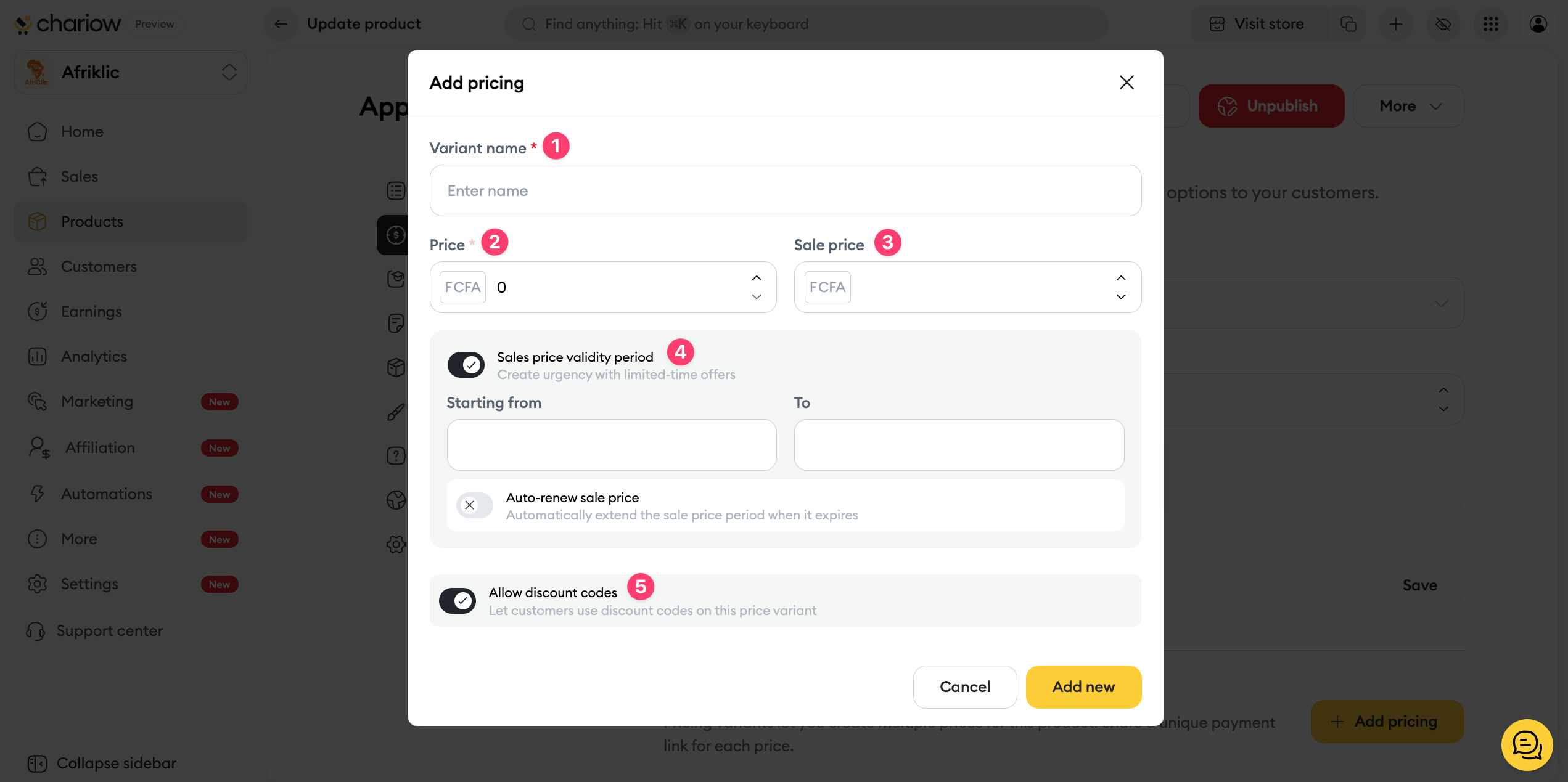
Variant name: Give it a clear title (e.g.: "Launch offer").
Price: Enter the main amount for this variant.
Promotional price (optional): If you fill in this field, the base price will appear crossed out to simulate a discount.
Validity period: Turn this option on if you want this price to be available only between two specific dates.
Discount codes: Check this box if you allow customers to apply additional coupons to this specific price.

Once your variants are saved, they appear as a list. You can do several things:
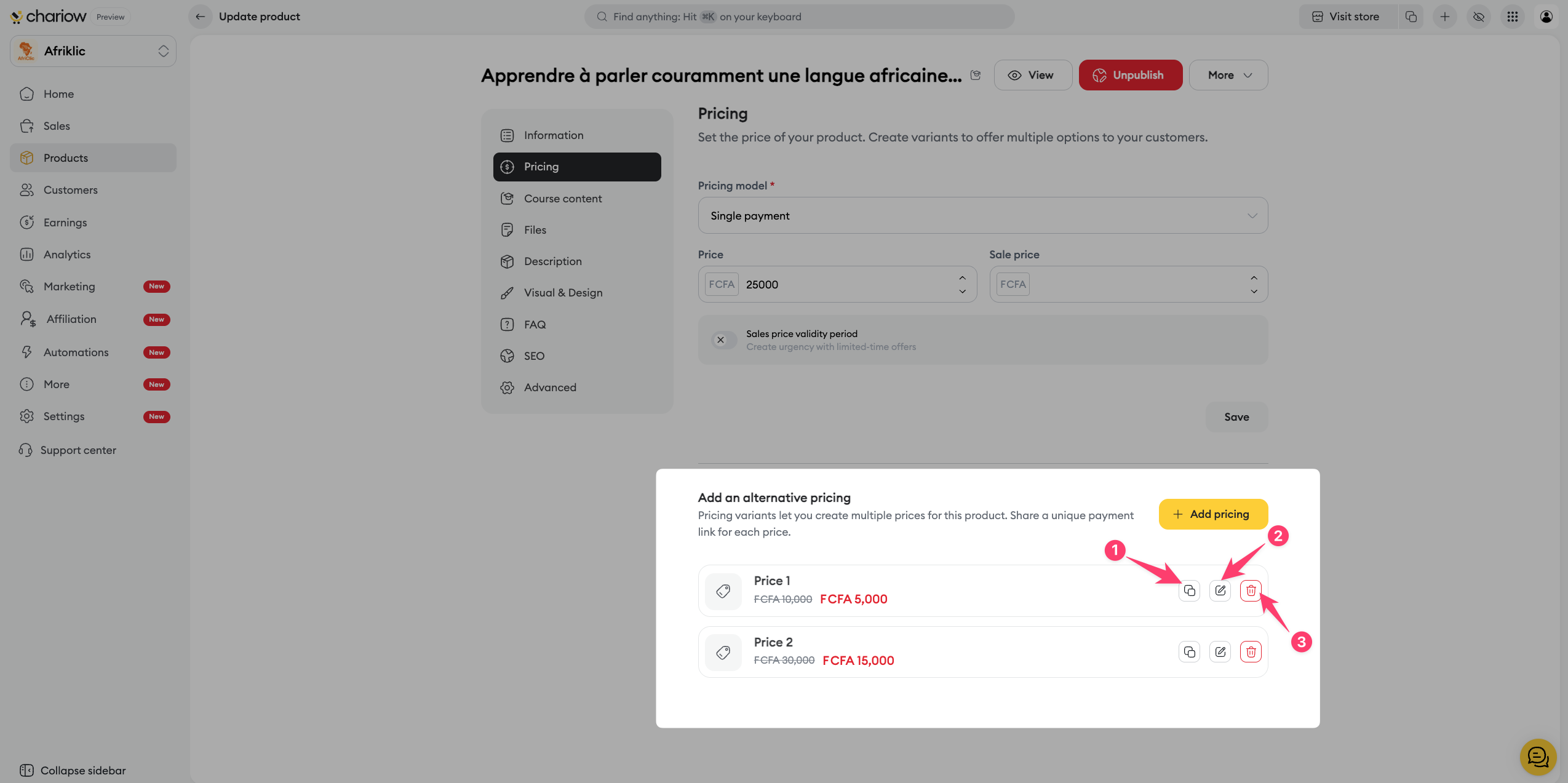
Copy the link : Each variant has its own unique payment link.
Edit (Pencil) : To adjust the amount or the conditions of the variant.
Delete (Trash) : To permanently remove a pricing option.
Don't forget to click the Save button at the bottom of the product page to confirm your changes. You can then view each variant using their respective links.
Need help? Contact our support via chat or at [email protected]

