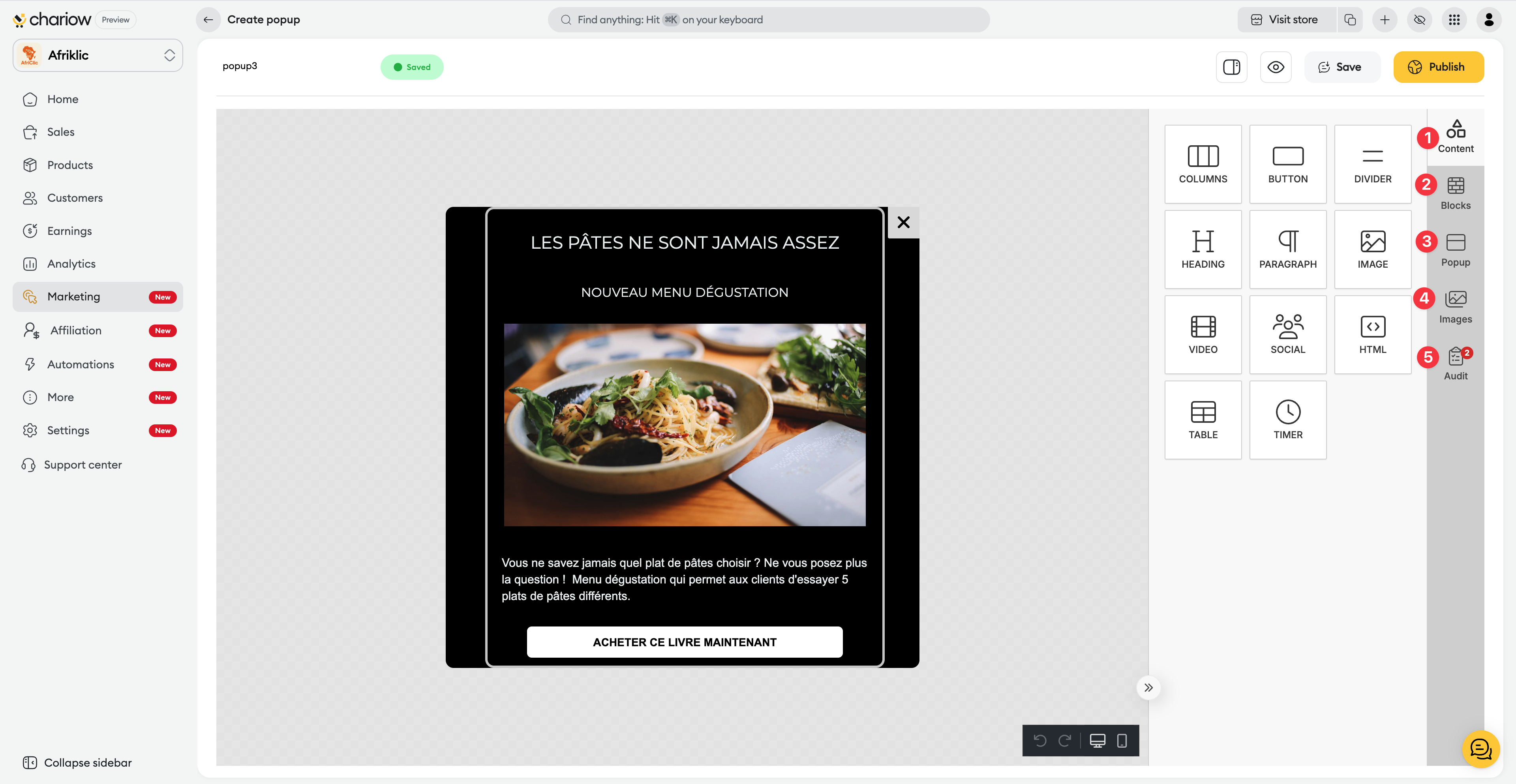
The Chariow editor uses a simple and powerful "drag-and-drop" system to design your visuals without any technical knowledge.
1. Content elements (Content)
Drag these elements directly into your workspace to enrich your message:
Title & Paragraph : For your text hooks.
Image & Video : To add your visuals or product demos.
Button : For your calls to action (CTA).
Timer : Perfect for creating a sense of urgency during a promotion.
Social & HTML : To add links to your social networks or custom code.
2. Organization into Blocks (Blocks)
Blocks let you structure the layout of your popup. You can choose one-, two-, or multi-column structures to organize your content elements in a balanced way.
3. Popup settings
This section lets you manage the overall technical and visual aspects:
Dimensions : Adjust the width and height of the module.
Style : Change the background, borders, and corner radius.
Audit : Use the audit tool (notification icon) to check that your popup is perfectly optimized to guarantee a smooth user experience.
4. Managing Photos and Images
The visual aspect is crucial to engage your visitors. You can add photos in two ways:
Image block : Drag the "Image" element from the Content tab. You can then:
Upload your own photos from your computer.
Use the Canva integration to import your designs directly.
Explore the built-in free photo library (Unsplash, Pixabay) to illustrate your themes.
Background image : In the Popup tab, you can set a photo as the full background of your popup for a more immersive effect.
5. The Audit tool (Checkup)
Before publishing, use the Audit feature in the right-hand menu (notification icon):
Optimization : The audit analyzes your popup to detect potential issues (images that are too heavy, missing links on buttons, etc.).
Performance : It gives you tips to make sure your popup loads quickly and correctly on all browsers.
Security and usability tips
Mobile mode : Remember to check how it looks on a smartphone via the dedicated icon at the bottom of the editor.
Auto-save : Even though the editor shows the status "Saved", make it a habit to manually click Save before publishing your important changes.
Need help? Contact our support via chat or at [email protected]