

Creating custom links is an advanced feature that lets you turn a simple product link into a real tracking and optimization tool. By associating your links with specific parameters, you can measure the effectiveness of your distribution channels and reduce friction at checkout.
Access the link configurator
To create a custom link, you have three entry points in your interface:
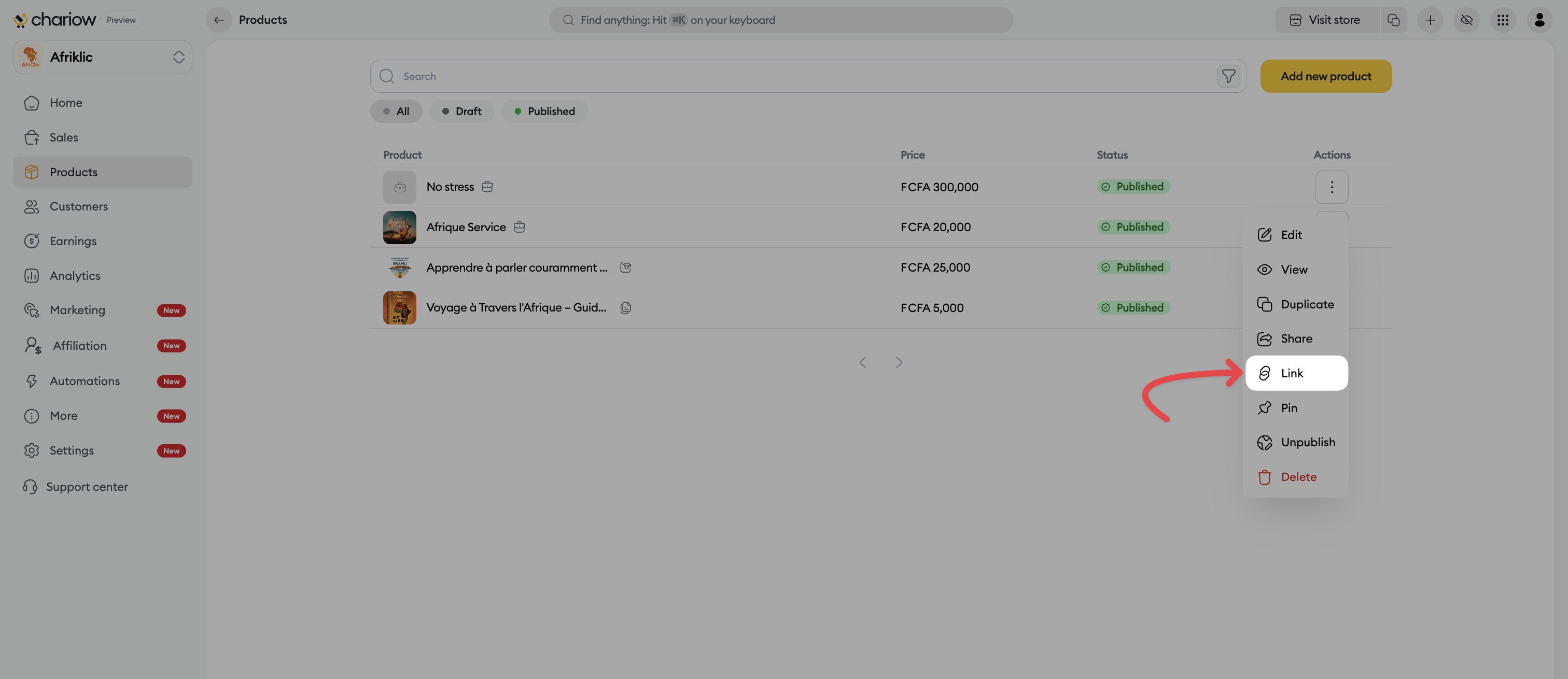
From the product list: Click on the three vertical dots (⋮) at the end of the product row and select the Link option.
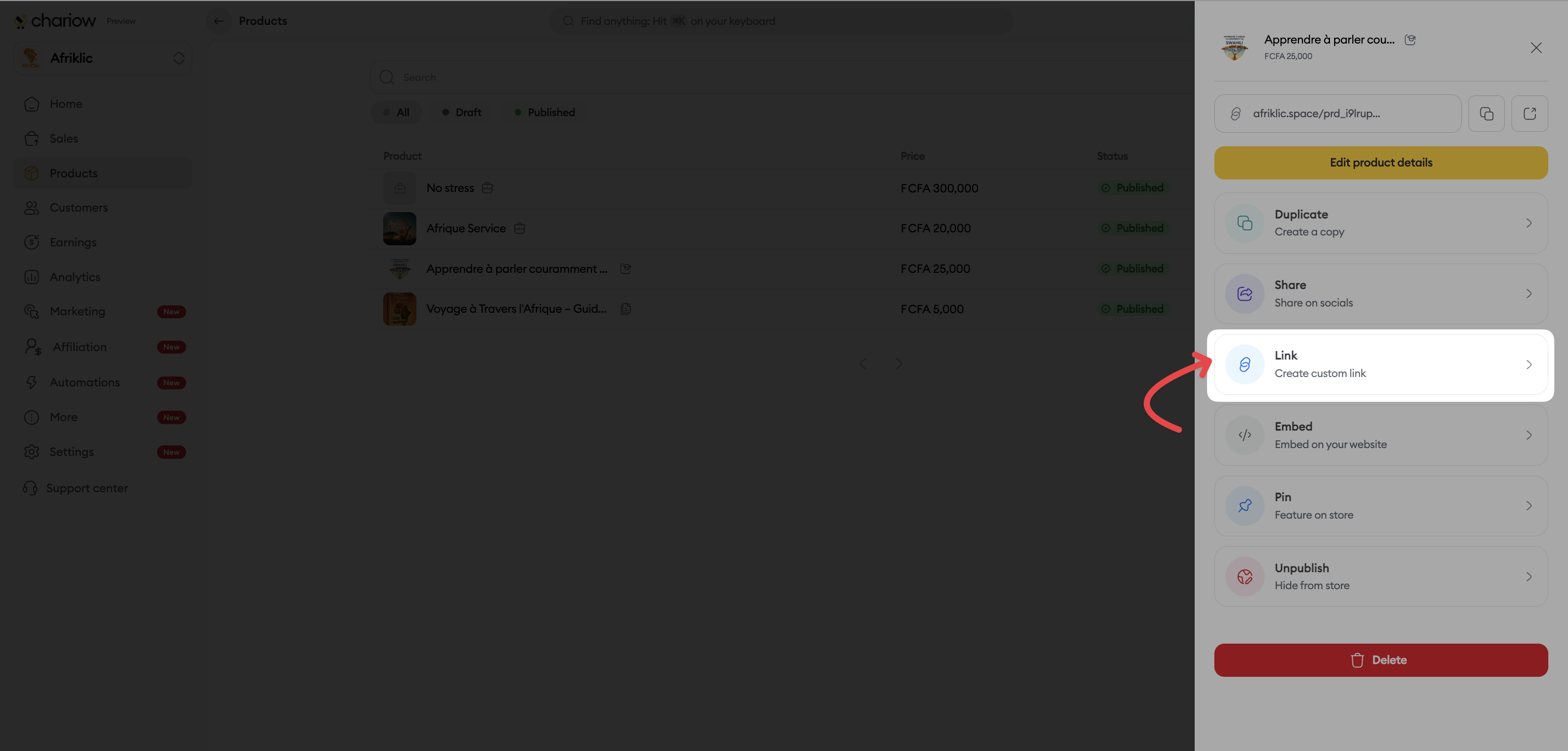
From the product details page: Click on the product to open the right-hand side panel, then select the Link tab located just above the sharing option.
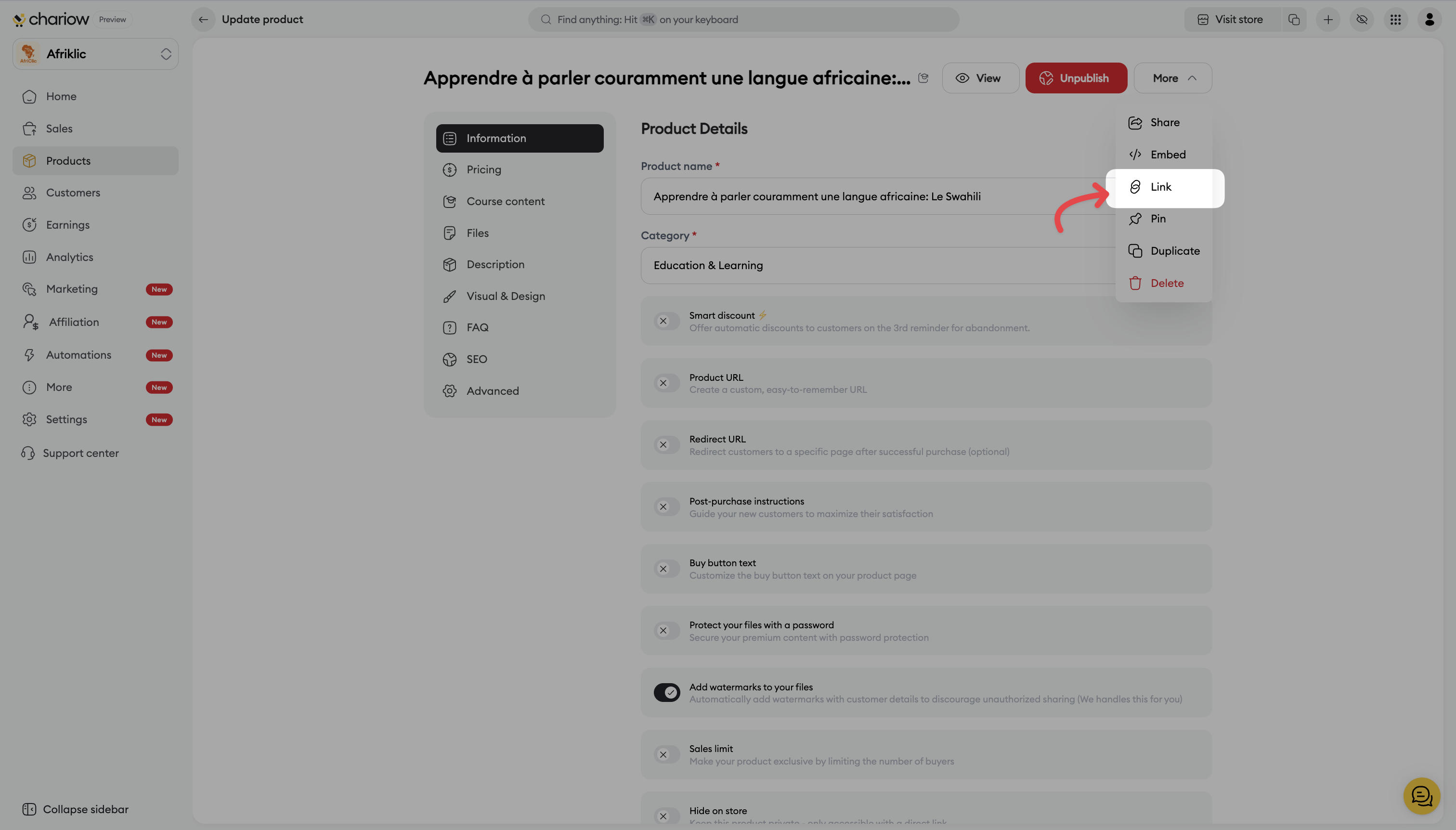
From the product edit page: Click the "More" button at the top right of the editing screen, then select the "Link" option from the dropdown menu.
Set up the link parameters
Once the pop-up window is open, you can adjust the following options to customize how the link behaves:
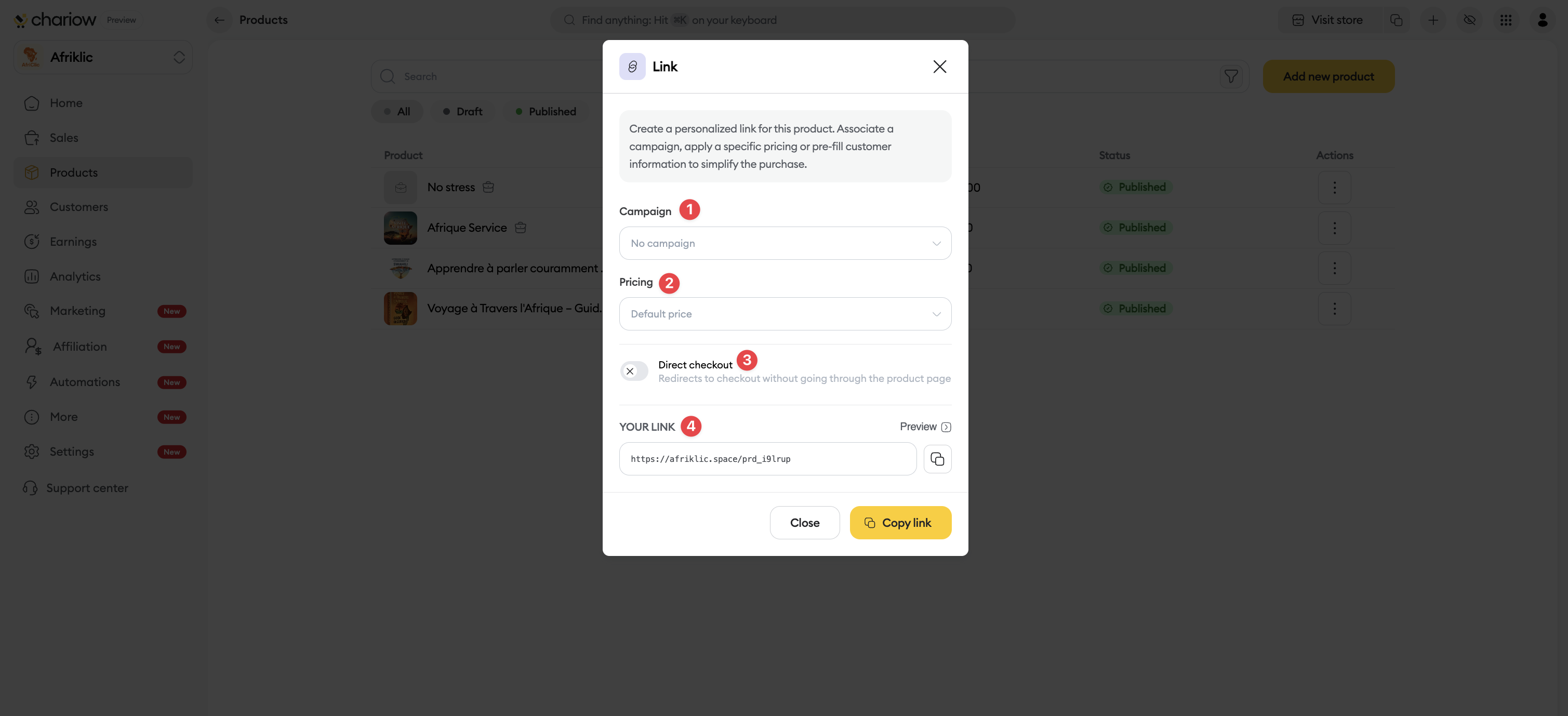
Campaign : Select an existing campaign from the dropdown menu to accurately track where your sales are coming from (e.g. Newsletter, Facebook Ads).
Billing : Apply a specific price if you’ve set up several pricing options for your product.
Direct access to payment : Turn on this toggle so the link sends the user straight to the checkout, without going through the product presentation page.
Retrieval : Click the Copy link button to get your custom URL and use it in your communication.
Need help? Contact our support via chat or at [email protected]