By connecting your Google Calendar account to Chariow, you automate the scheduling of your appointments. The system will be able to check your availability in real time, automatically add new bookings to your calendar, and send invitations to your clients.
An active Chariow account.
A Google account.
In your left Chariow sidebar, click on the tab "Automations".
Go to Automations > Integrations.
Click on the Connect a tool button.
Search for "Google Calendar" in the list of available tools.
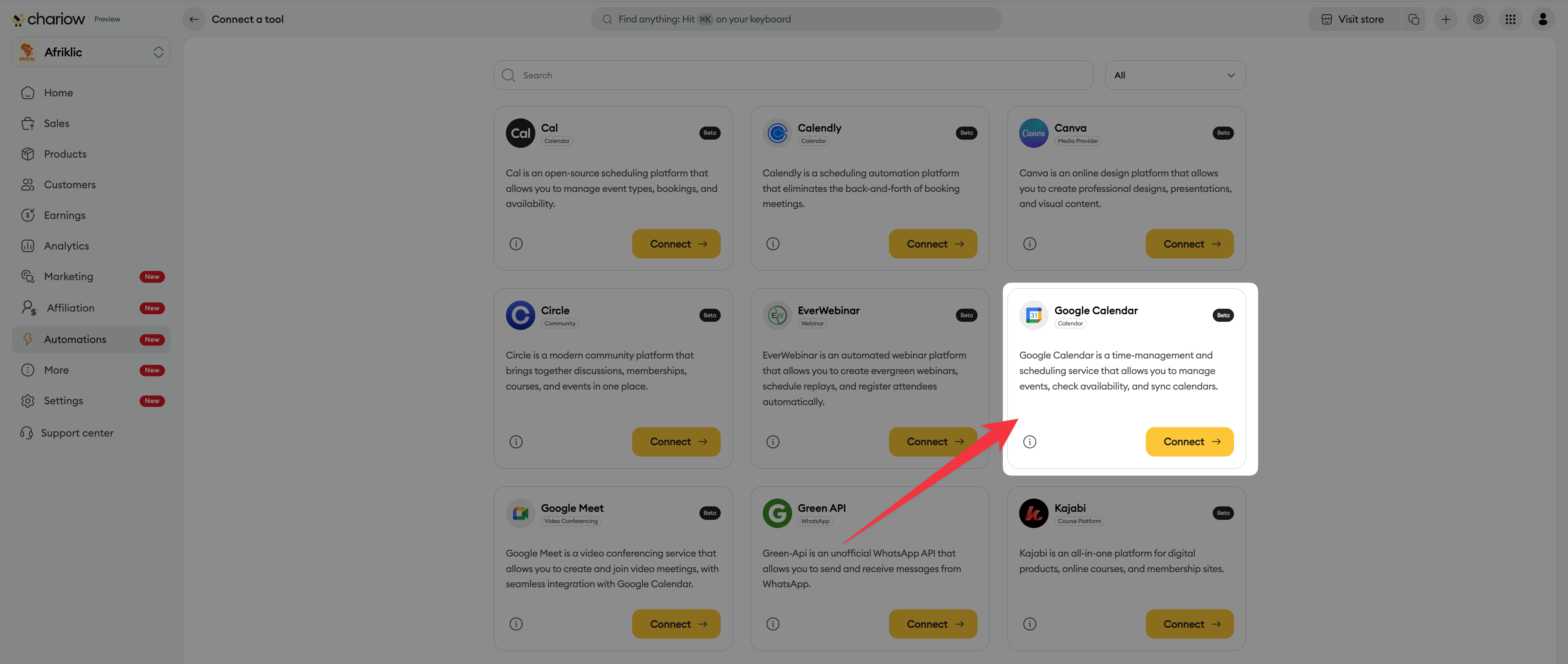
Click on the "Connect" button.
A configuration page opens. Give an "Account name" to this connection. This will help you identify it if you connect multiple calendars.
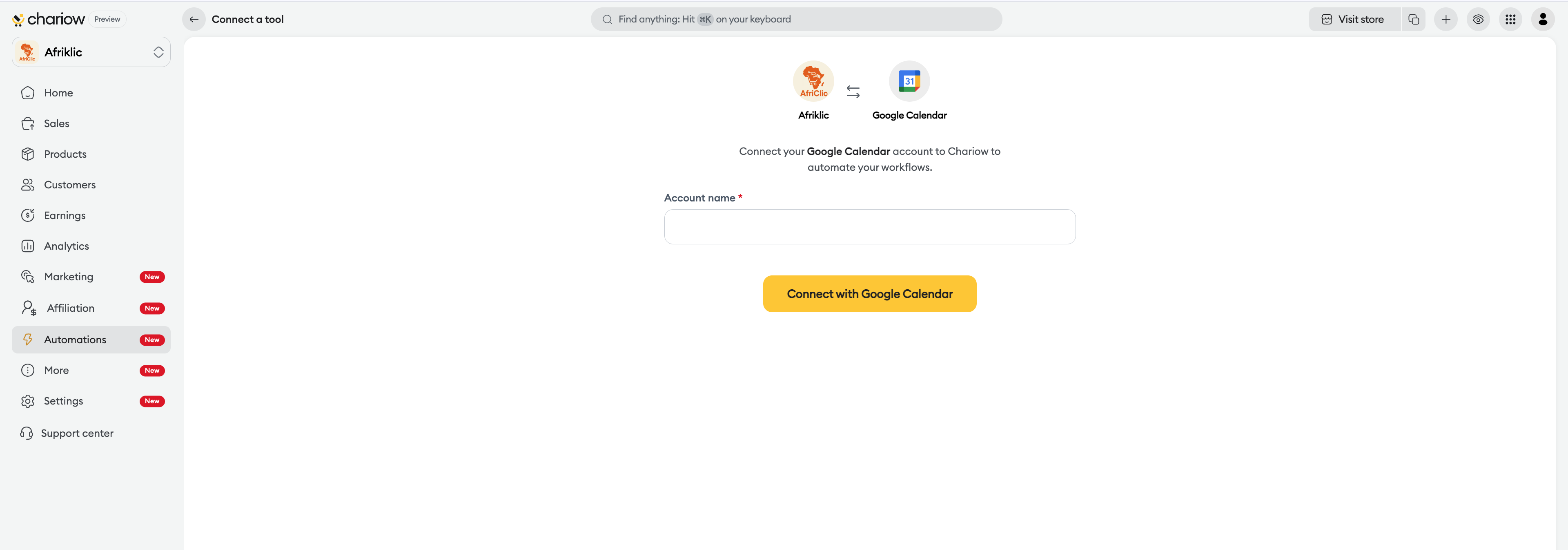
Click on "Sign in with Google Calendar".
A Google window appears: "Select an account". Choose the email address associated with the calendar you want to sync.
On the next screen, confirm access by clicking on "Continue".
To work properly, Chariow needs access to certain information from your Google account. You’ll need to allow Chariow to:
View and edit the events in your calendars.
Show your availability in your calendars.
View and download the calendars you have access to.
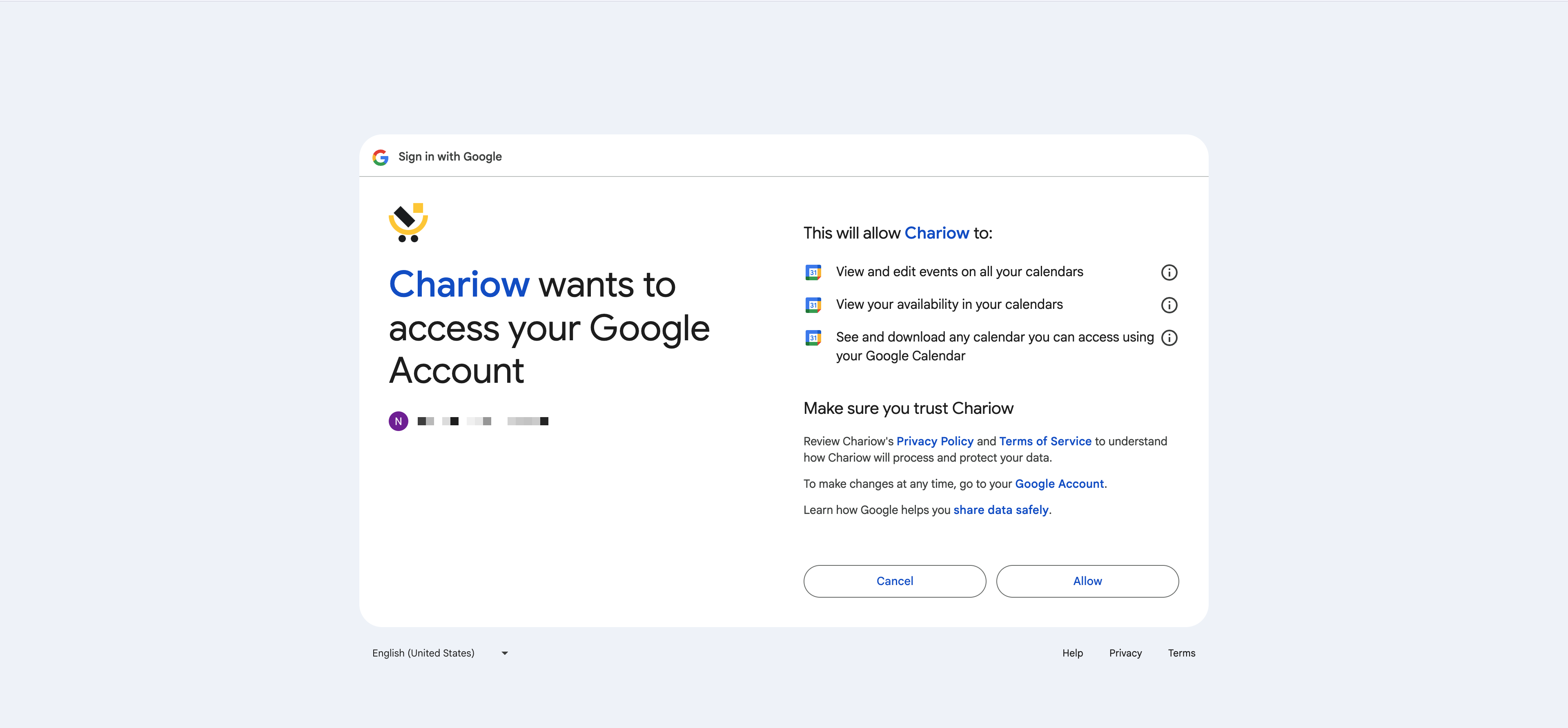
Click the "Allow" button at the bottom right to finish the process.
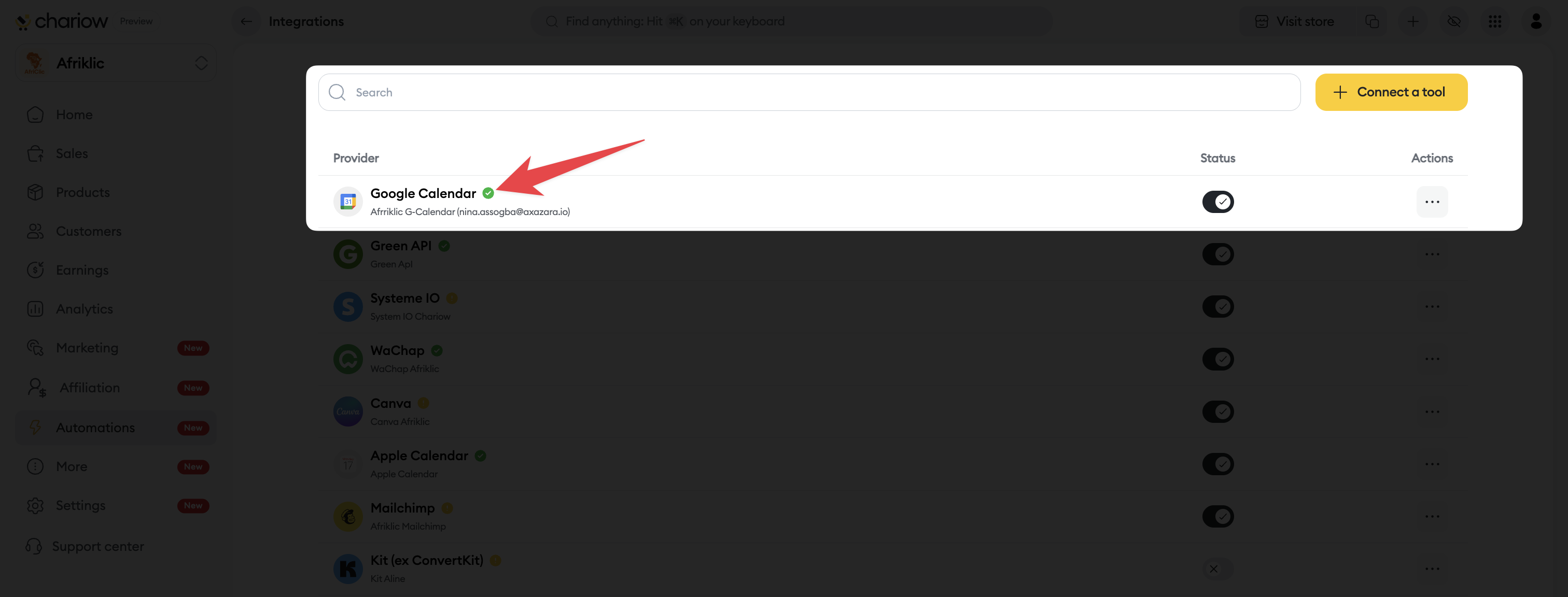
Once the authorization is confirmed, you'll be redirected to Chariow. Your Google Calendar account will now show as "Connected". You can then select it when setting up your "Coaching" products to sync your time slots.
Need help? Contact our support via chat or at [email protected]

