The Makeup editor is the central tool to turn your visitors into customers. Thanks to its intuitive interface, you can structure your pitch, illustrate your offer, and configure your purchase buttons without any technical skills.
The Blocks form the backbone of your page. They let you define the column layout to organize your elements.
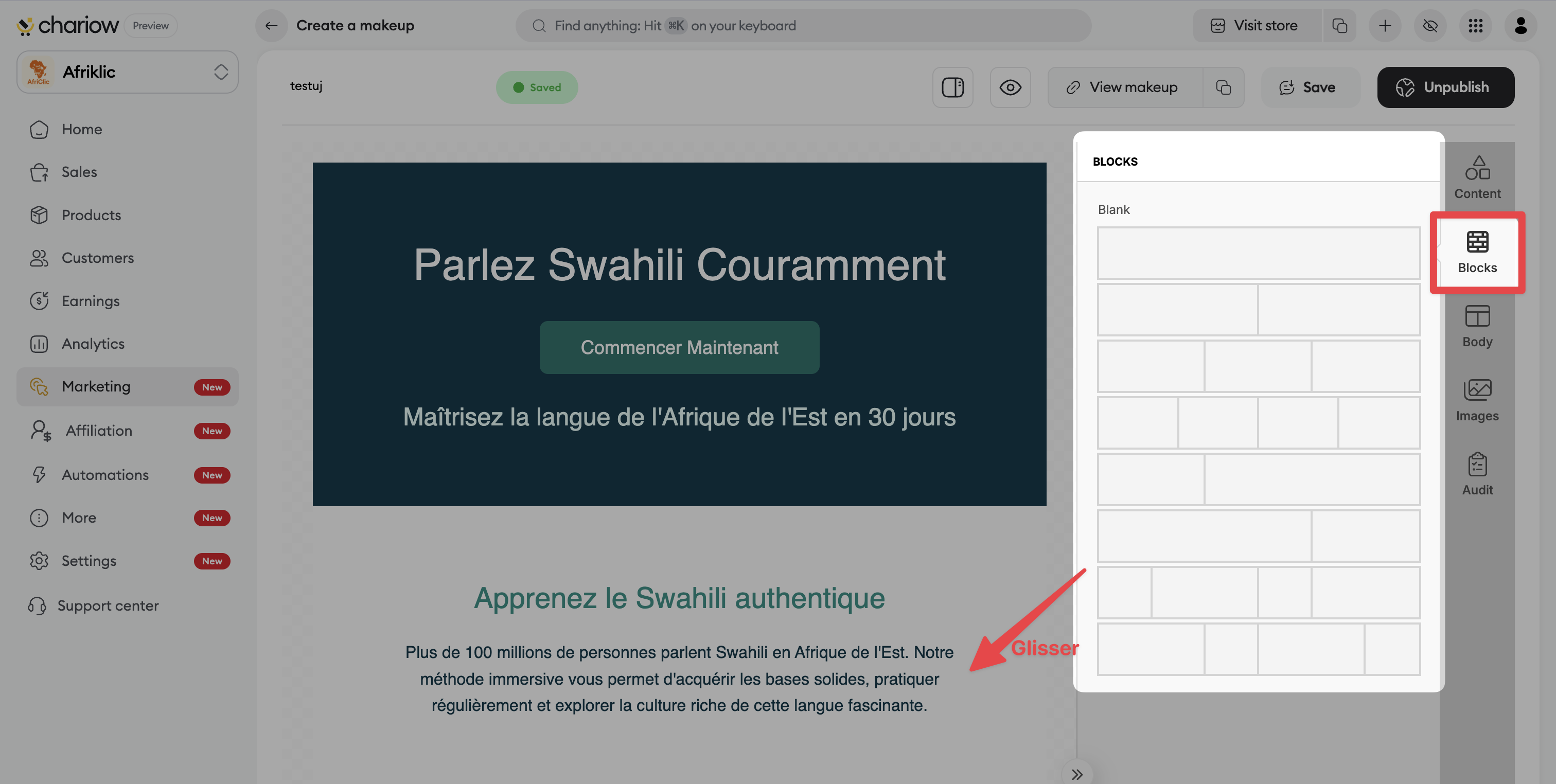
Steps: Click on the Blocks tab in the right sidebar.
Drag a structure (e.g. 1 column, 2 equal columns, or asymmetrical) onto your workspace.
This step is essential to neatly align your text and images side by side.
Once your columns are in place, fill them with interactive elements.
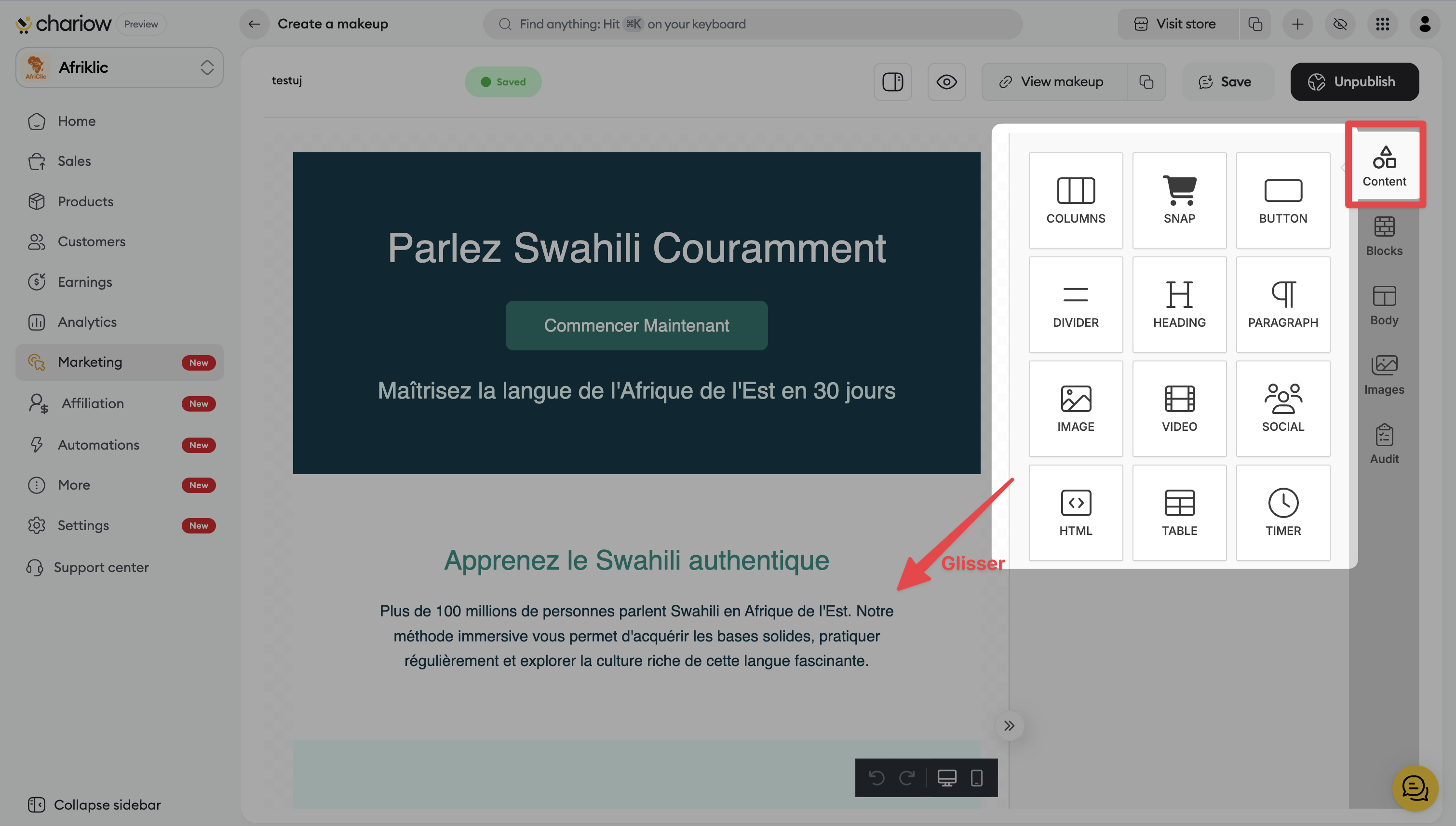
Procedure: Use the Content tab to drag your components: Title, Paragraph, Button, Image, Video, Social or even a Countdown timer to create urgency.
The "Snap" element lets you insert a dynamic buy button or an order module directly linked to your product catalog.
Each text element can be adjusted to captivate your audience. By clicking on any text or heading in your workspace, the right-hand panel shows the following options:
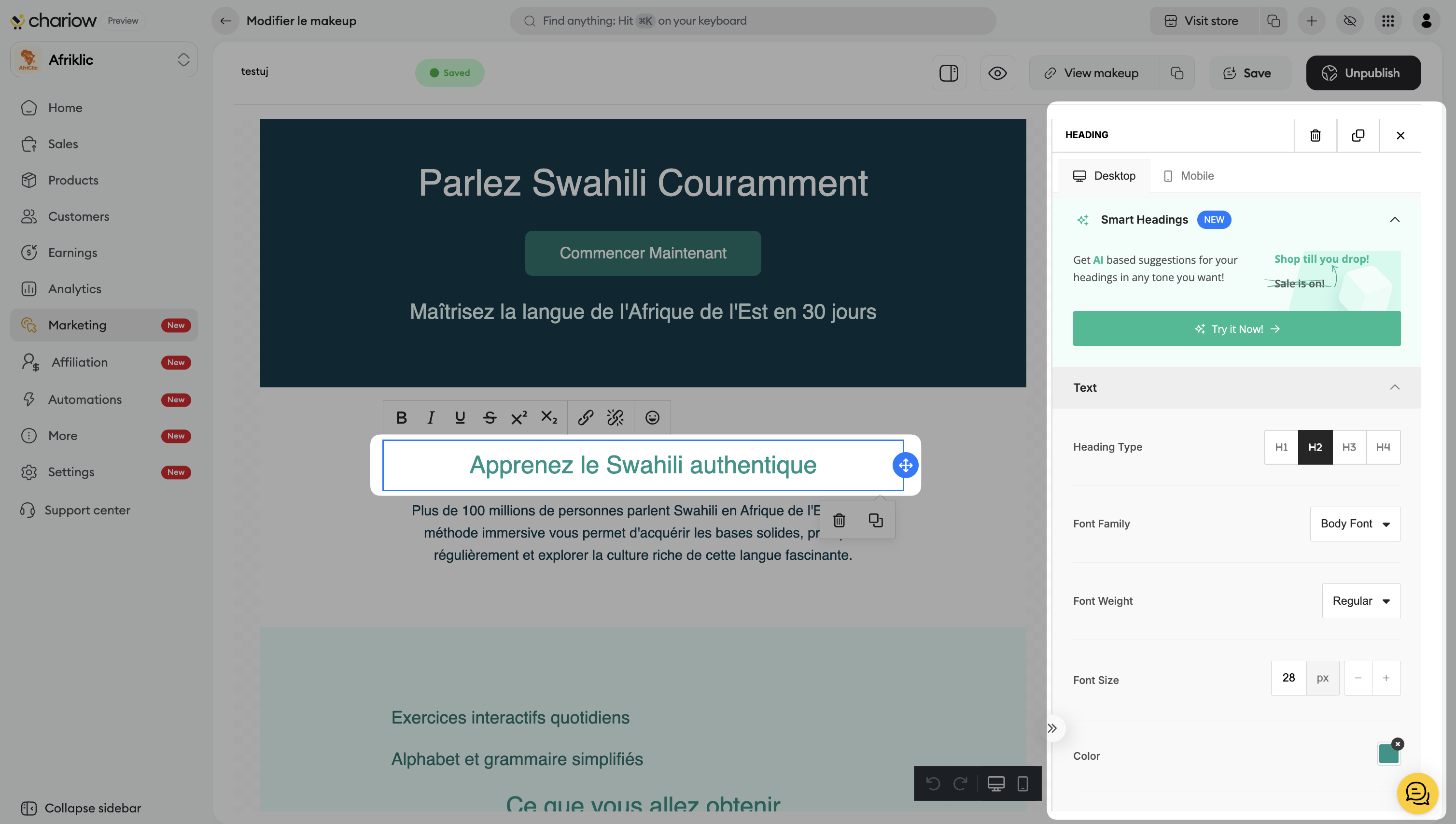
Smart titles (AI): Take advantage of AI-based suggestions to generate catchy titles in the tone you want.
Typography: Choose the type of title (H1 to H4), the font, its weight (Regular, Bold, etc.) and its size in pixels.
Direct formatting: Use the floating toolbar to make content bold or italic, insert a hyperlink, or add emojis.
Advanced settings: Adjust the color, alignment, line height, and letter spacing for maximum readability.
The Body tab lets you set the global settings that ensure the visual consistency of your Makeup.
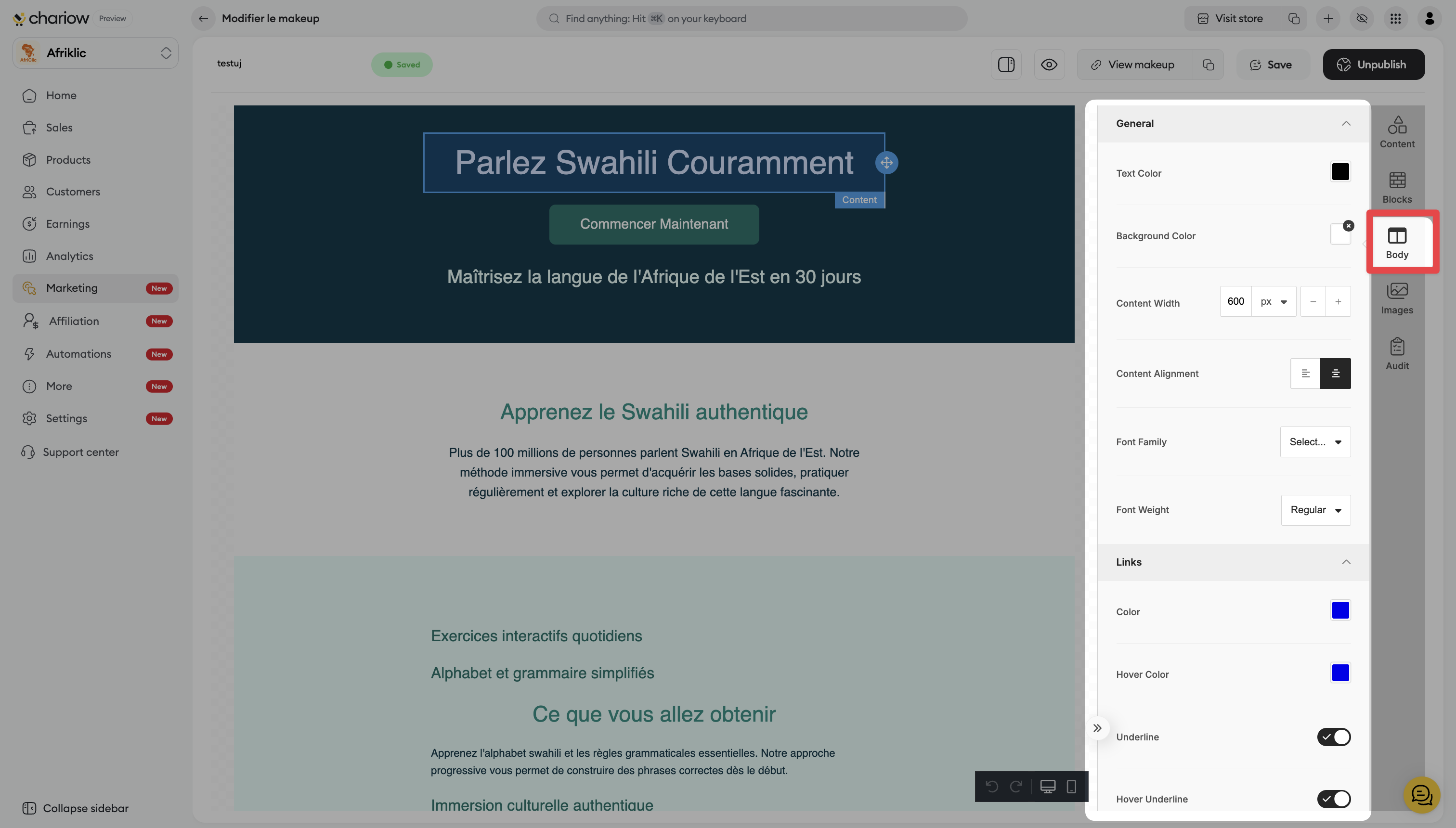
General style: Set the default text color and the global background color of the page.
Content width: Adjust the width of your workspace (e.g. 600 px) to structure your layout.
Link management: Customize the color of links and their hover behavior (underline or color change).
Background: You can add a global background image instead of a solid color.
The Photos tab gives you access to millions of royalty-free images to illustrate your pages without leaving the Chariow interface.
Search and insertion: Search for visuals in the Unsplash, Pexels and Pixabay catalogs and simply drag them onto your page.
License: All photos are under a Creative Commons Zero license, allowing you free commercial use.
Before putting your page online, use the Audit tab to guarantee a flawless experience.
Automatic analysis: The tool detects design errors, broken links, or missing images in real time.
Validation: A message "No issues were detected!" confirms that your page is ready to be published.
Once your design has been validated by the Audit:
Save: Click the Save button at the top right to save your changes.
Preview: Use the Eye icon to test how it looks on Mobile and Tablet.
Publish: Click the Publish button to make the page accessible. If you want to pause access, use the Unpublish button.
Need help? Contact our support via chat or at [email protected].

