The Pixels section in your Settings gives you powerful tools to track activity on your storefront. In addition to integrations like Google Tag Manager and the Facebook Pixel, you can add a custom JavaScript code. This feature is perfect for advanced users who want to implement third-party analytics tools or specific scripts for even more detailed tracking of their customers' behavior.
A custom JavaScript code is a piece of code you can insert directly into your storefront’s source code. It lets you integrate features or tools that aren’t available by default, like conversion tracking pixels from other ad platforms, advanced behavioral analytics tools, or scripts to customize the user experience.
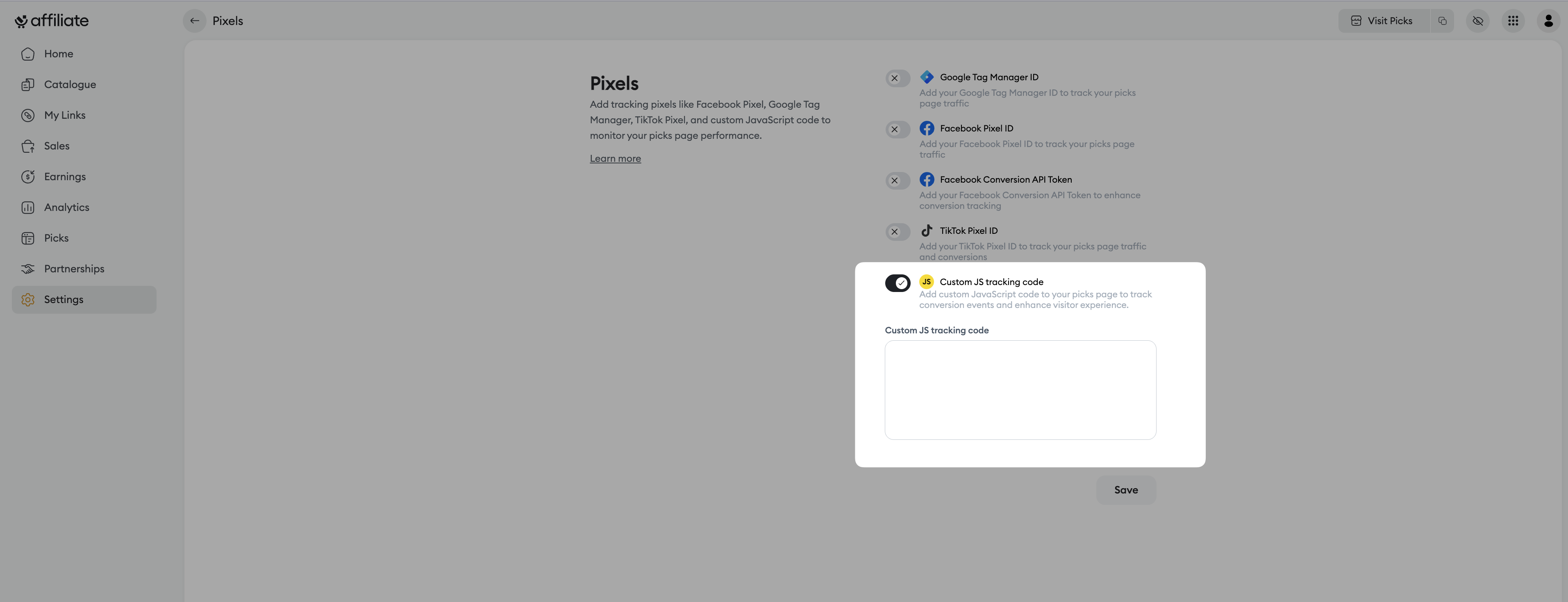
Go to the analytics settings: In the main menu of your dashboard, click on "Settings", then on "Pixels".
Turn on Custom JavaScript Code: In the "Custom JavaScript Code" section, switch on the toggle.
Enter your code: A text field will appear. Copy and paste your JavaScript code into this space. Make sure you don’t have any comments in your code for best results.
Save the changes: Click the "Save" button to apply your code to your storefront.
Advanced conversion tracking: Integrate tracking pixels for less common advertising platforms or for specific conversion events that aren’t covered by native integrations.
Behavioral analysis: Add scripts for advanced tools to visualize heatmaps, session recordings, and better understand how users browse your storefront.
Experience personalization: Set up scripts for dynamic elements to improve customer engagement.
A/B testing: Implement scripts to run A/B tests on elements of your storefront to optimize conversions.
Here’s a simple example of JavaScript code to track a custom event
  <script>
  function trackCustomEvent(eventName, eventData) {
    console.log('Événement personnalisé :', eventName, eventData);
    // Le code de votre outil d'analyse serait inséré ici
  }
</script>
Note: This example is purely illustrative. The exact code will depend on the tool or feature you want to implement.
Technical knowledge: Adding JavaScript code requires basic knowledge of web development. An error in the code can affect how your storefront works.
Security: Make sure the JavaScript code you add comes from a reliable source. Malicious code could compromise the security of your account and your customers.
Need help? Contact our support via chat or at [email protected]