The TikTok Pixel is a powerful advertising analytics tool that lets you measure how effective your marketing campaigns are, understand your visitors’ behavior, and optimize your sales on your storefront. By installing it, you’ll be able to track conversions, create custom audiences, and retarget users who are interested in your products.
Before you start integrating your TikTok Pixel, make sure you have the following:
A TikTok for Business account: You need to have an active TikTok for Business account. If you don’t have one yet, you can create it on the TikTok website.
A created TikTok Pixel: Make sure you’ve already created a TikTok Pixel through your TikTok Ads Manager. If you haven’t yet, follow TikTok’s instructions to set it up.
Your TikTok Pixel ID: This unique ID is required for the integration. You’ll find it in your Pixel settings within the TikTok Ads Manager.
Follow these simple instructions to integrate your TikTok Pixel into your storefront:
Log in to your Affiliate account:
Log in to your Affiliate dashboard using your credentials.
Go to Analytics Settings
Go to Settings then open the Pixels section.
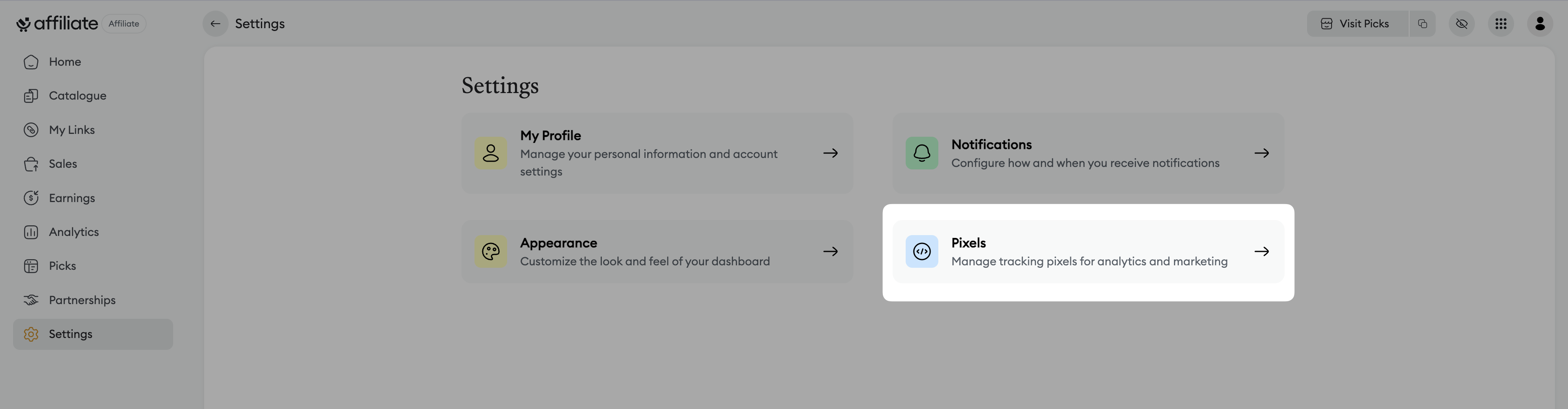
Find the TikTok Pixel ID section:
On the analytics settings page, you’ll see several tracking options (Google Tag Manager, Facebook Pixel… )
Enable the option dedicated to TikTok, called "TikTok Pixel ID".
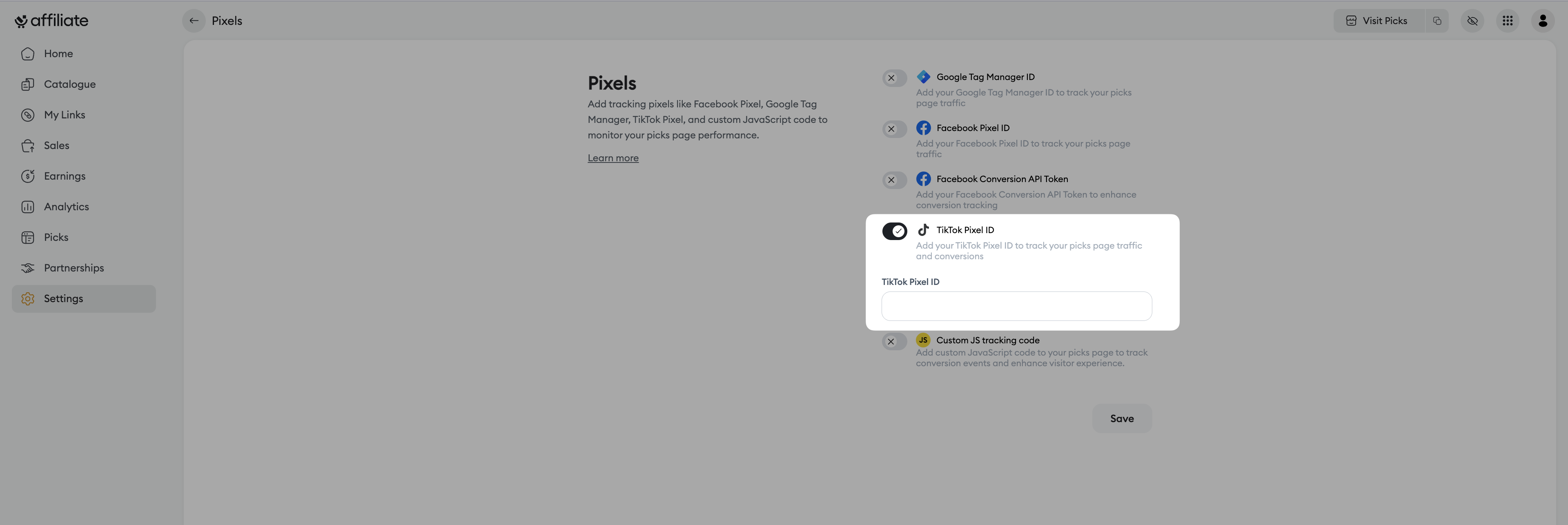
Enter your TikTok Pixel ID:
In the empty text field under "TikTok Pixel ID", paste the unique ID of your TikTok Pixel that you got from your TikTok Ads Manager account.
Save the changes:
Once you’ve pasted your ID, click the Save button at the bottom of the page to apply the changes.
To make sure your Pixel is working properly after the integration:
Use the TikTok Pixel Helper extension:
Install the "TikTok Pixel Helper" extension on your Chrome browser (or an equivalent tool for other browsers) and visit your storefront.
Click the TikTok Pixel Helper extension icon. It should detect your Pixel and display the events (Page View, AddToCart, Purchase, etc.) that are firing on your site.
Check in TikTok Ads Manager:
In your TikTok Ads Manager, go to the "Pixels" section.
The status of your Pixel should change from "Inactive" to "Active" after a few minutes or hours of activity on your storefront and once the first events are detected.
Need help? Contact our support via chat or at [email protected]

