The transfer of ownership is a major action that lets you delegate the full management of a store to a new owner. This procedure is generally used in the following cases:
Business sale.
Partnership dissolution.
Inheritance.
Business restructuring.
Personal or other reasons.
Follow these steps to start the transfer process:
Log in to your Chariow interface.
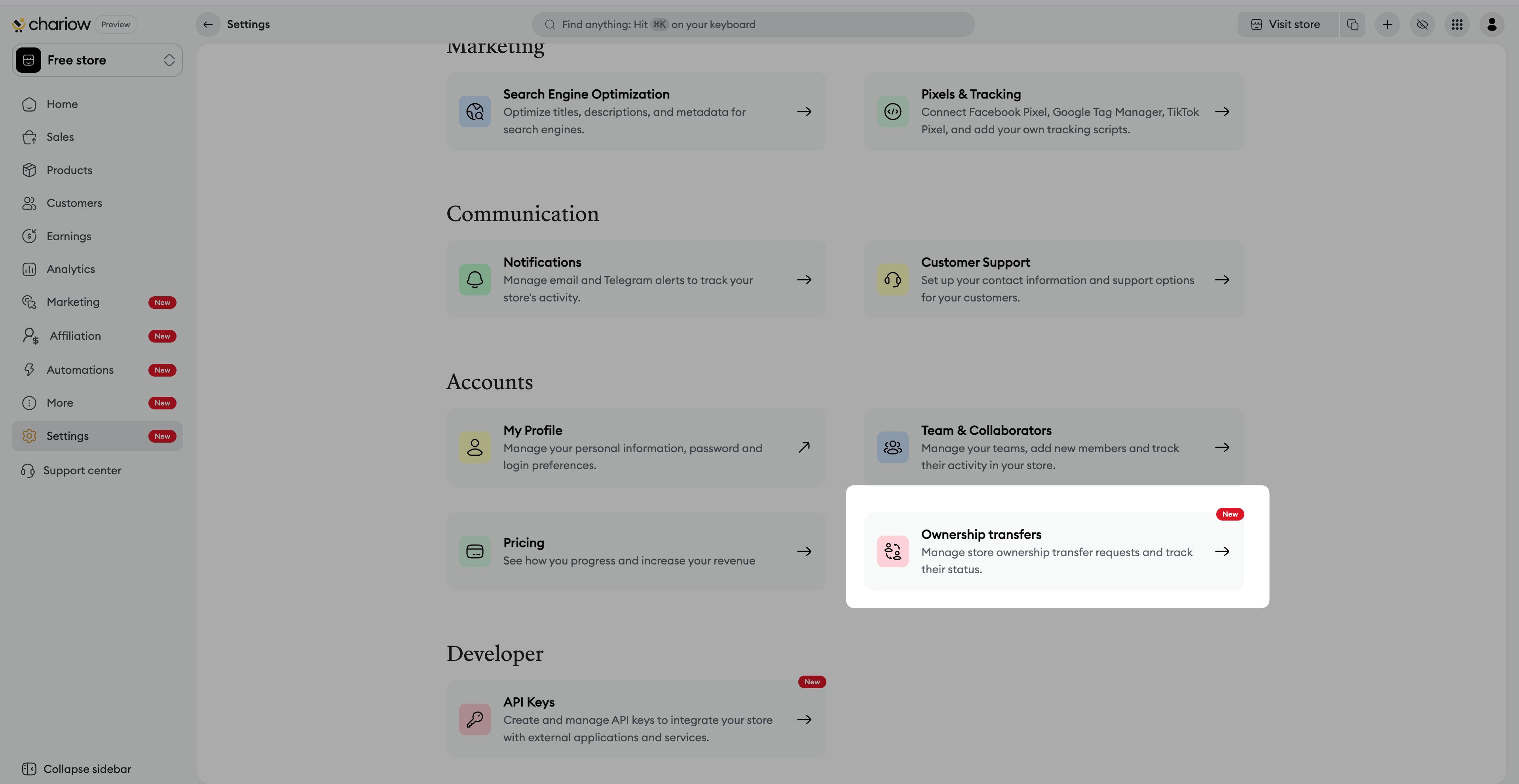
In the left sidebar menu, go to the "Settings" tab.
Click on the "Ownership transfers" tile located in the Accounts section.
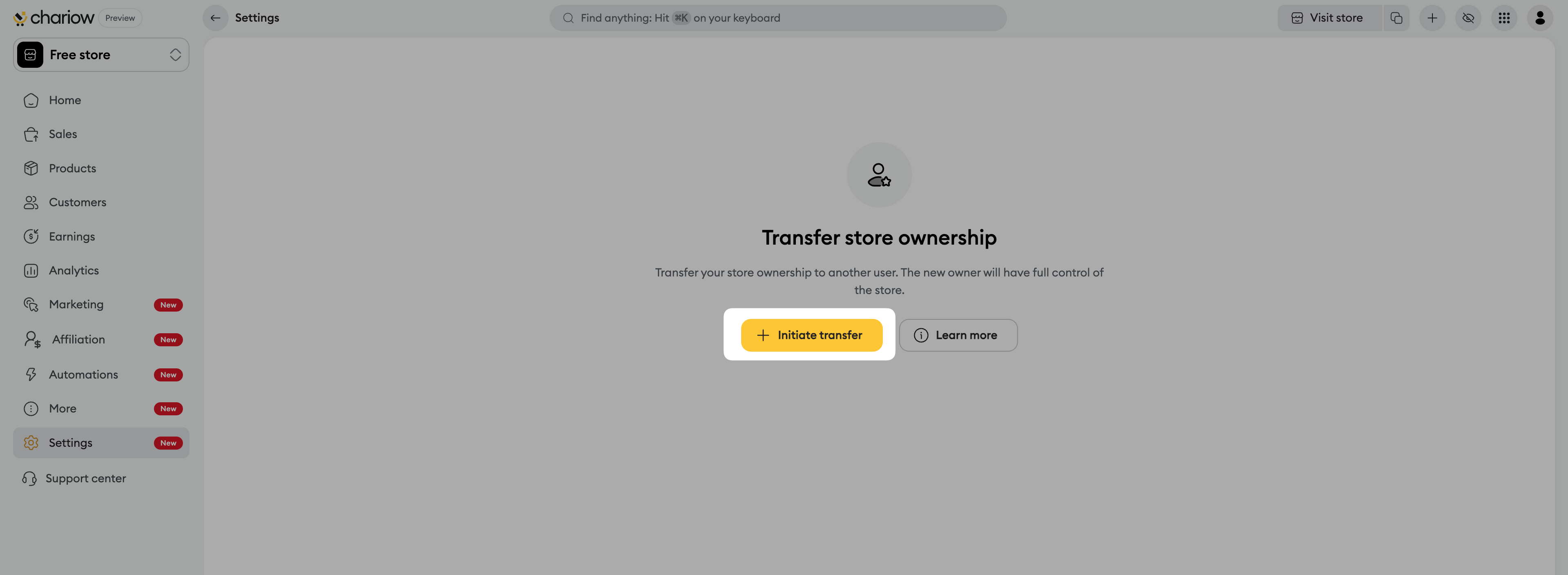
Click on the "Initiate a transfer" button.
Fill in the required information in the pop-up window:
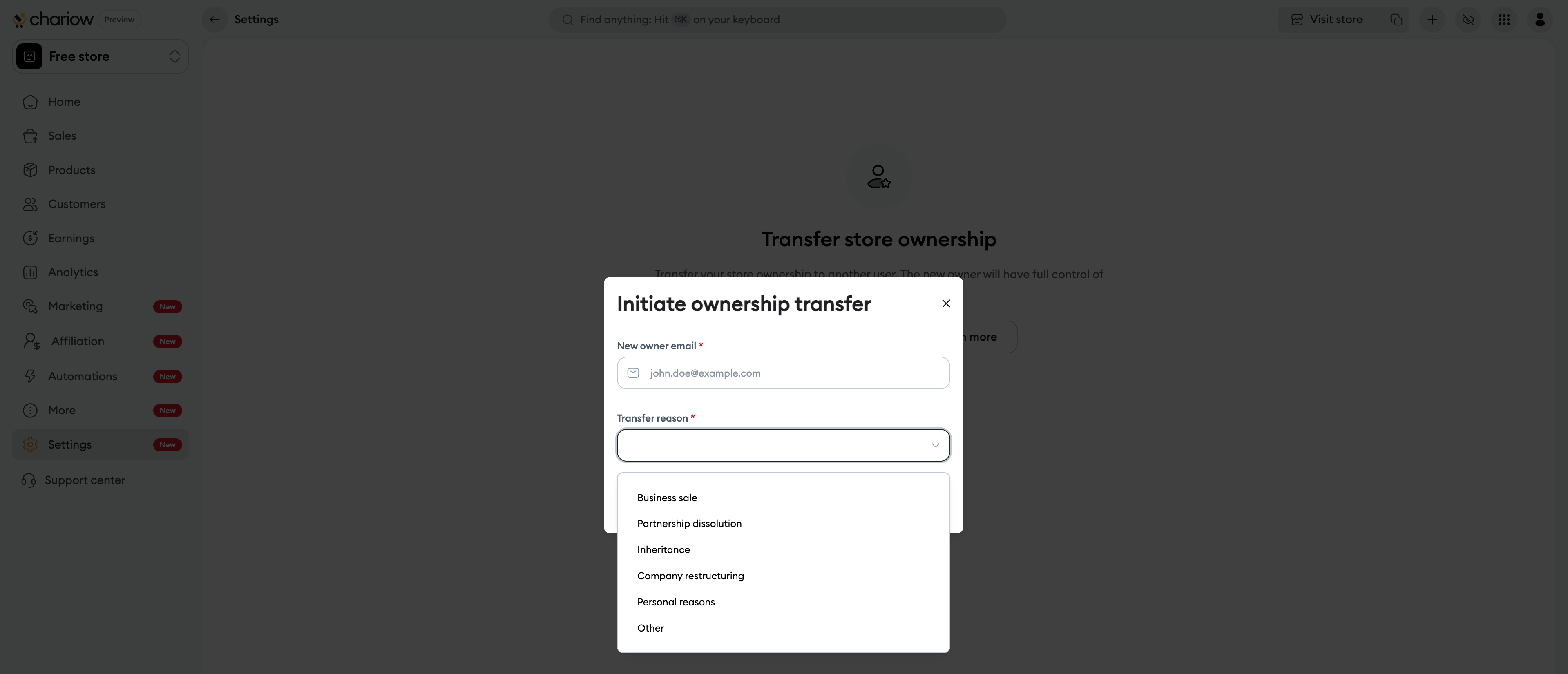
Email of the new owner: Enter the email address of the person who will receive the store.
Reason for the transfer: Select the appropriate reason from the dropdown menu.
Once the request is sent, the process requires confirmation from the recipient:
Email Receipt: The future owner receives an automated email containing a secure confirmation link.
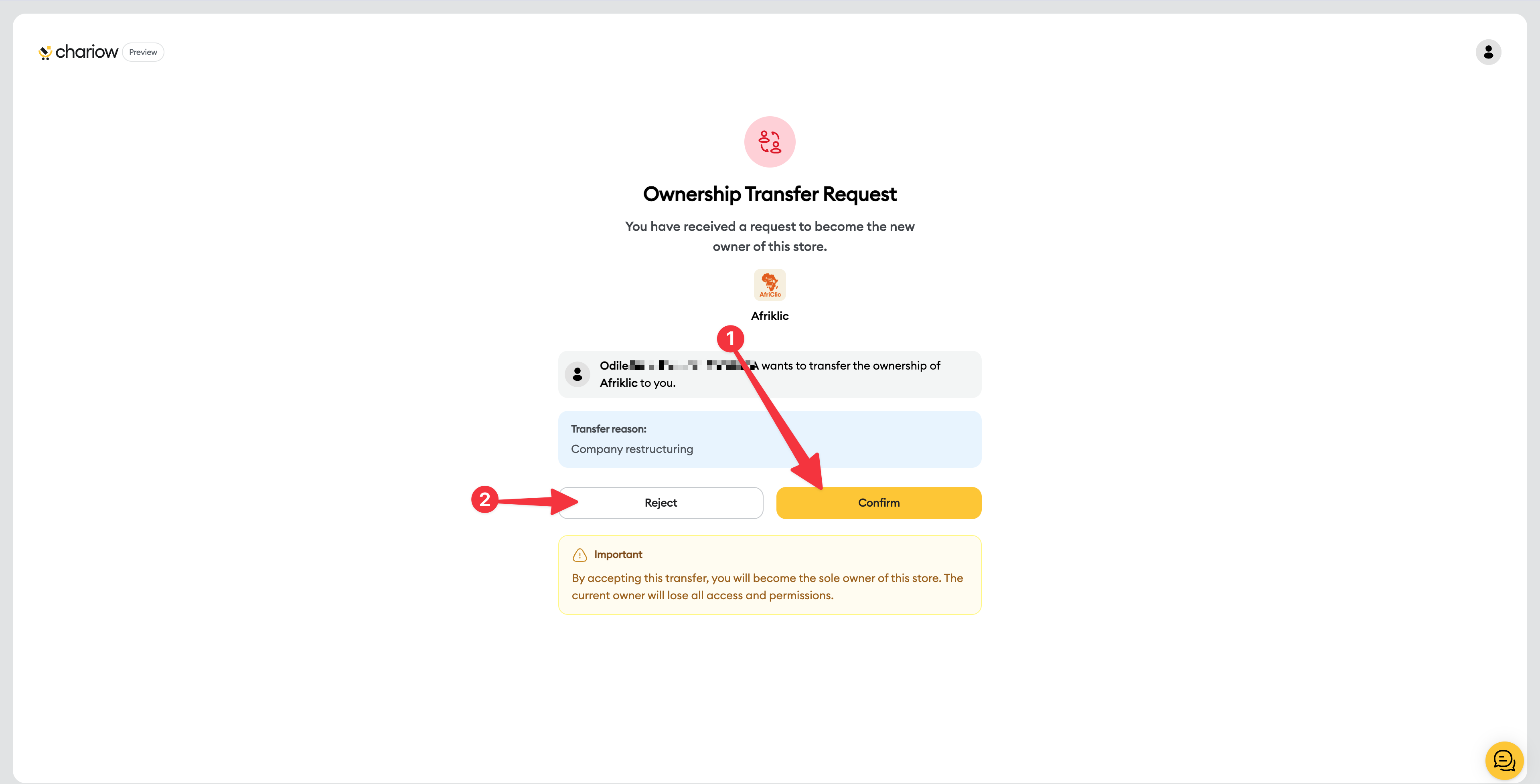
Confirmation Page: By clicking the link, they are redirected to a dedicated page displaying the "Ownership Transfer Request".
Finalization: The new owner must click "Confirm" (1) to accept the transfer or "Reject" (2) to cancel the operation.

You can track the progress of the request directly from your dashboard:
Summary table: A list shows the new owner's email, the stated reason, the current status of the request, and the date of the operation.
Action Menu: By clicking the three dots (...), you can "View Details" or "Cancel Request" if it has not yet been confirmed.
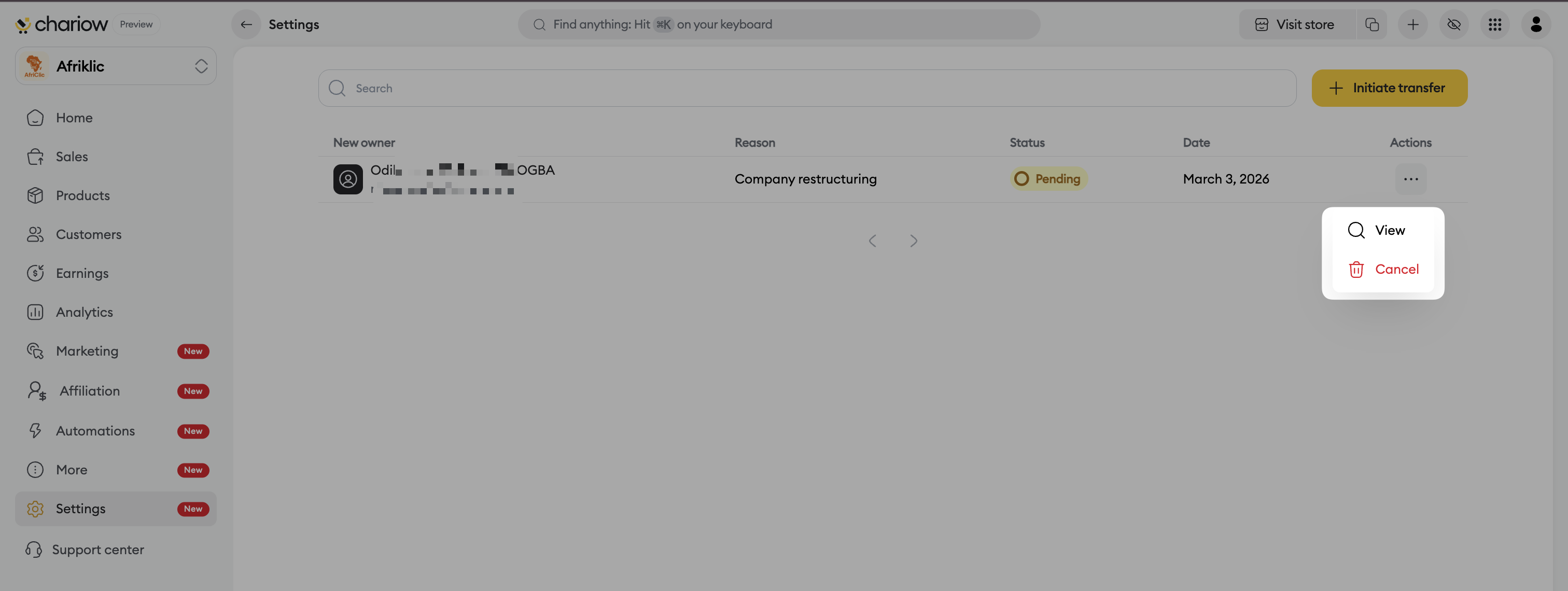
Full Details: The side panel displays the unique transfer ID, as well as the detailed profiles of the former and future owners.
Double-check before confirming: Make sure the recipient's email address is correct, because this action transfers all admin rights.
History: Chariow keeps a record of all past transfers to ensure transparency in how your account is managed.
Need help? Contact our support via chat or at [email protected]

