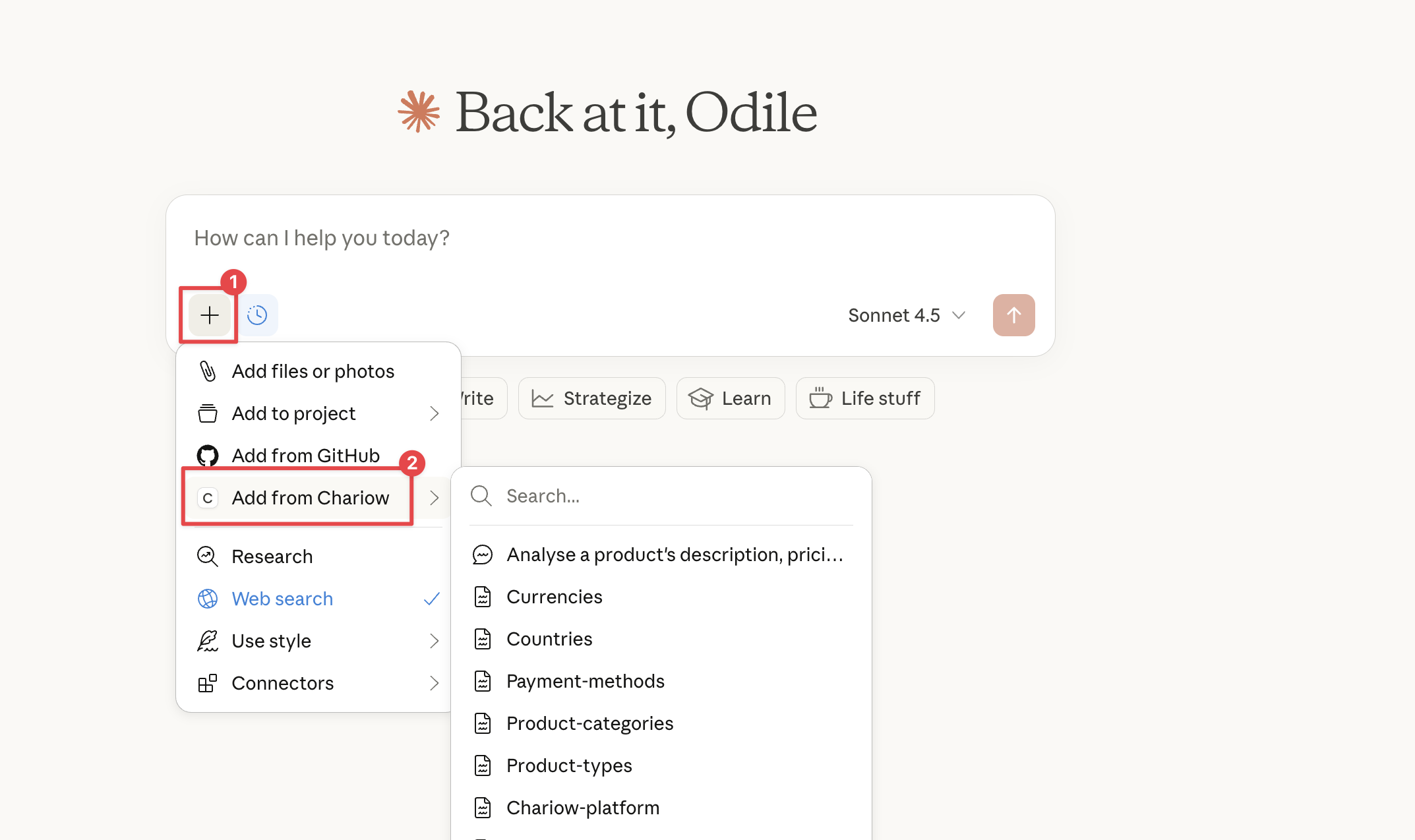
The MCP protocol (Model Context Protocol) lets Claude access your sales, products, and customers natively, without any copy-pasting. To use it, you absolutely need to use the Claude Desktop app (Mac or Windows), because it’s the only one that manages this protocol natively.
Prerequisite: Copy your MCP server URL (https://mcp.chariow.com/public) from the "Automations" tab in your Chariow interface.
Open Claude Desktop.
Go to "Settings" (click your name in the bottom left).
Go to the "Connectors" tab and click "Add custom connector".
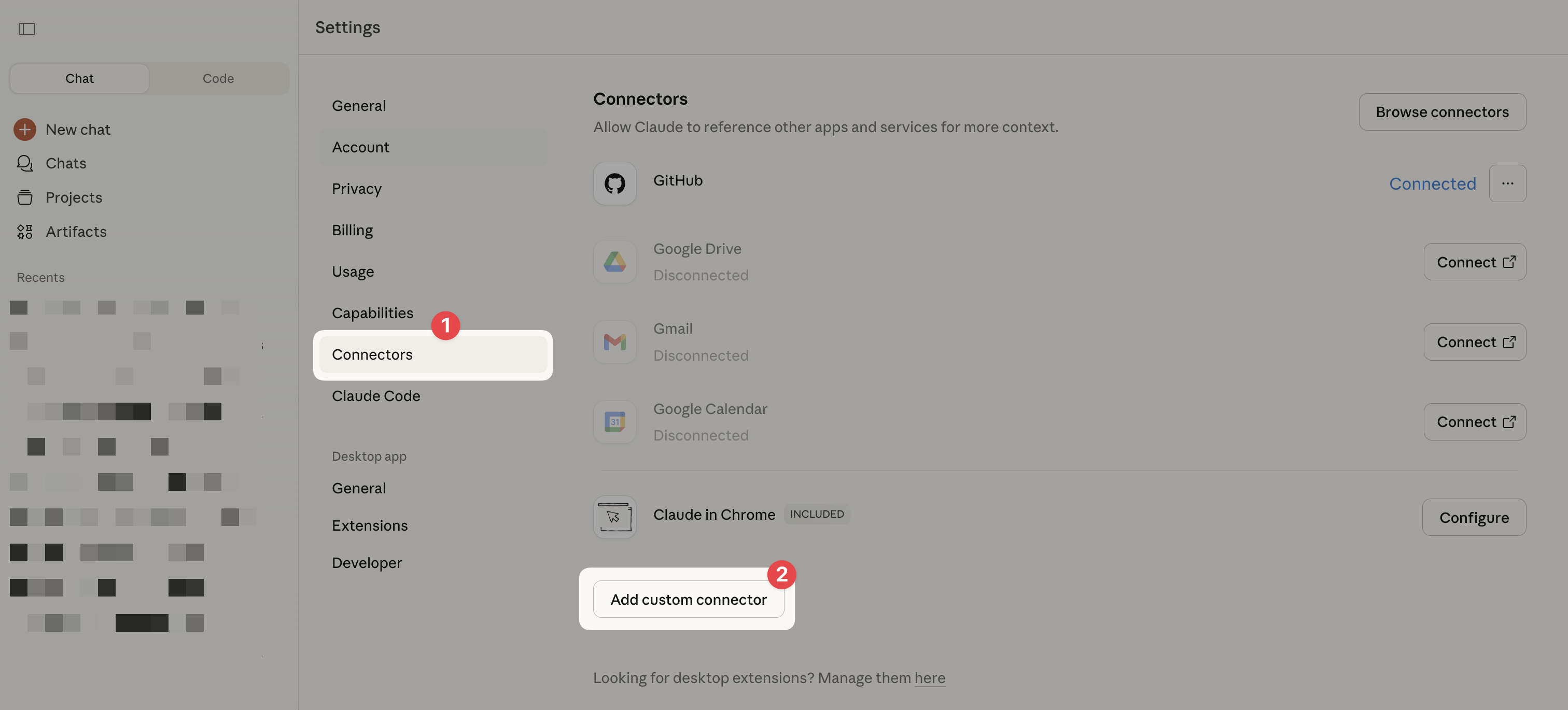
Enter a name (e.g. Chariow) and paste your MCP URL.
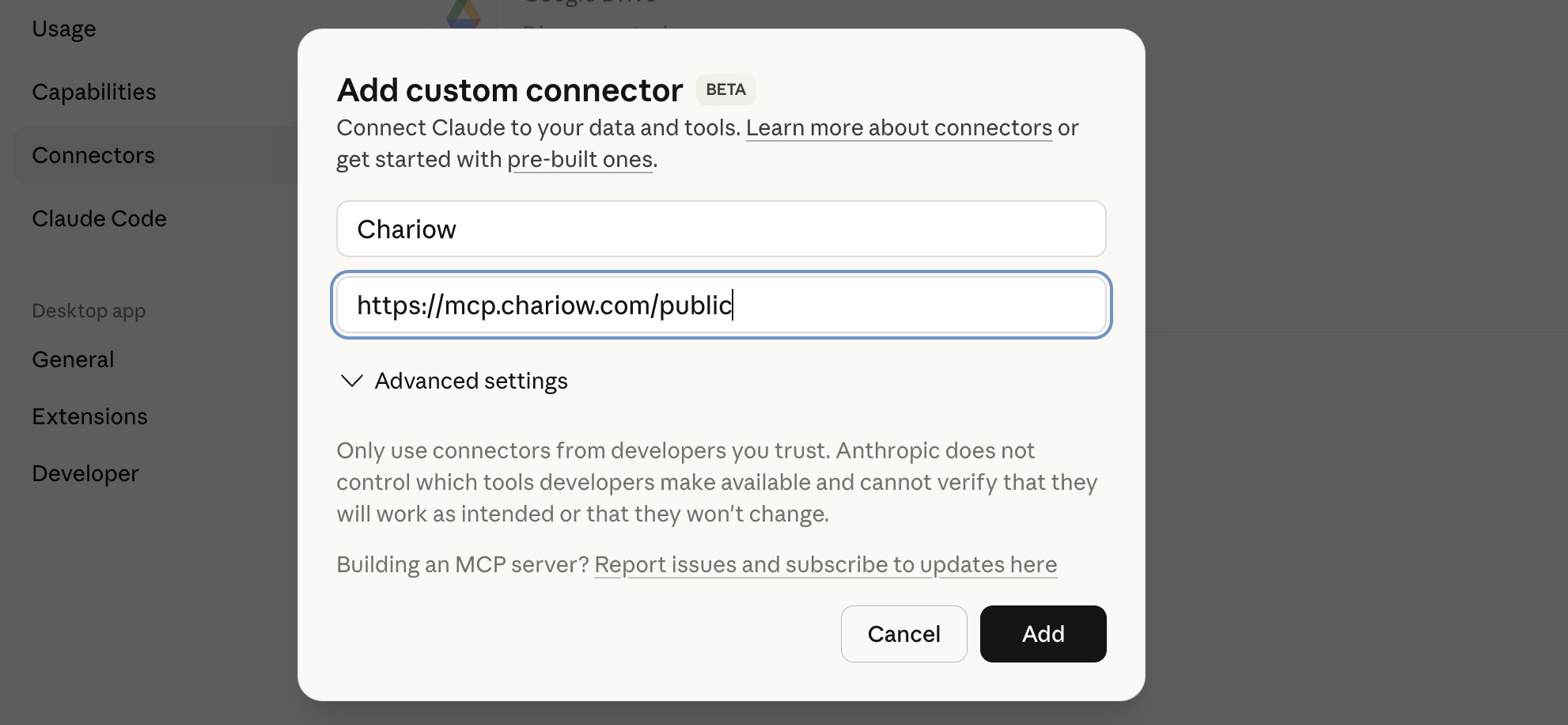
Click on "Add".
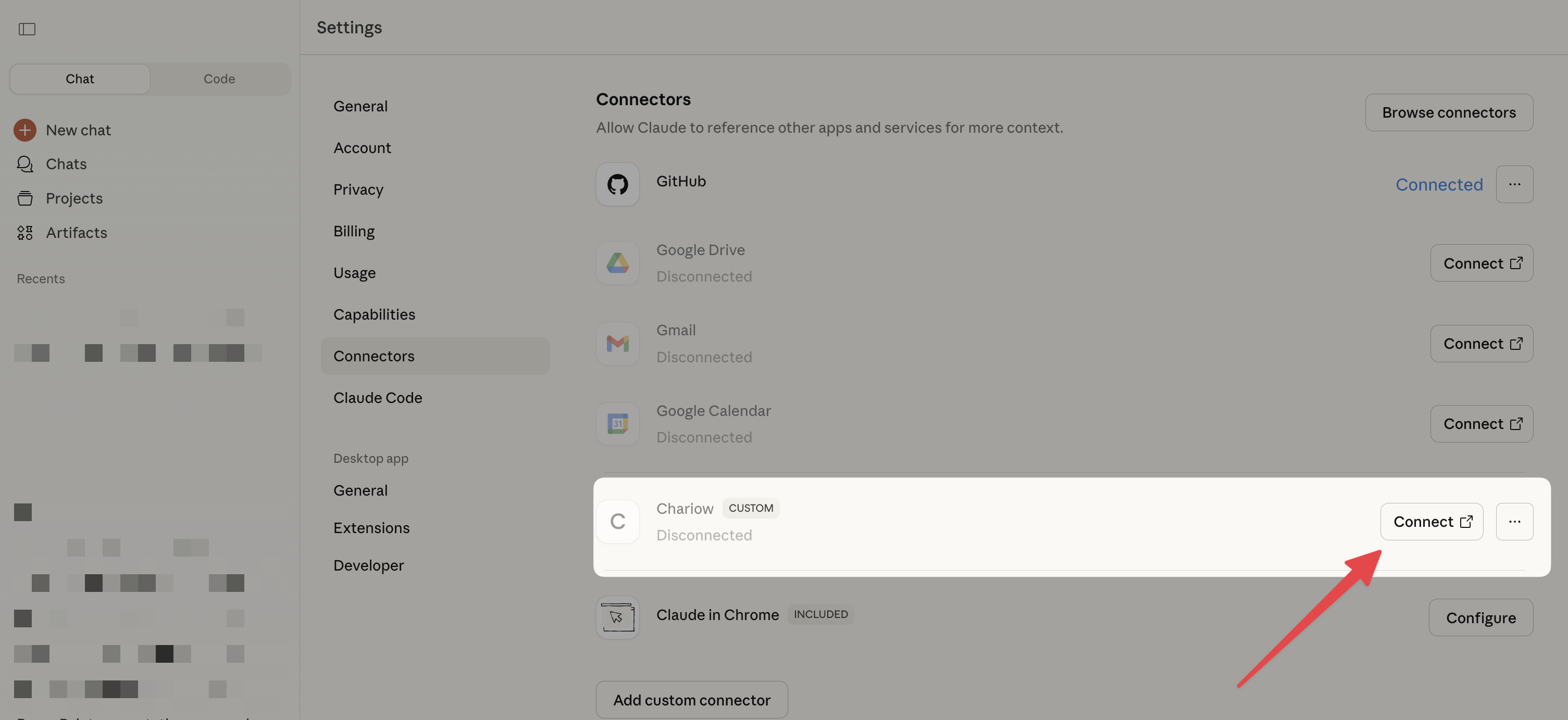
Find "Chariow" in your list of connectors (it will initially show up as "Disconnected") and click "Connect".
A Chariow window opens: check the permissions and click "Continue".
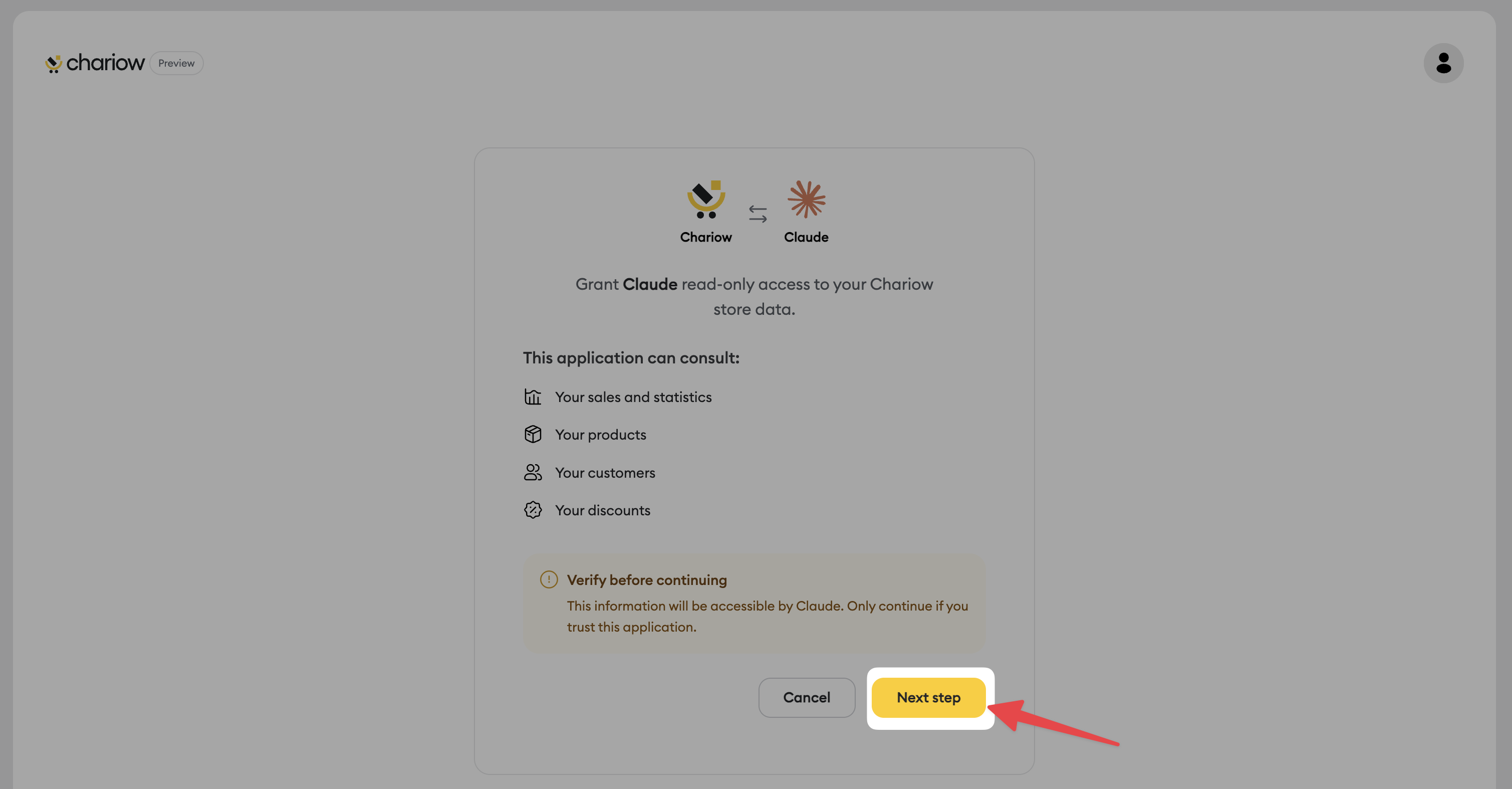
Select the store you want to connect.
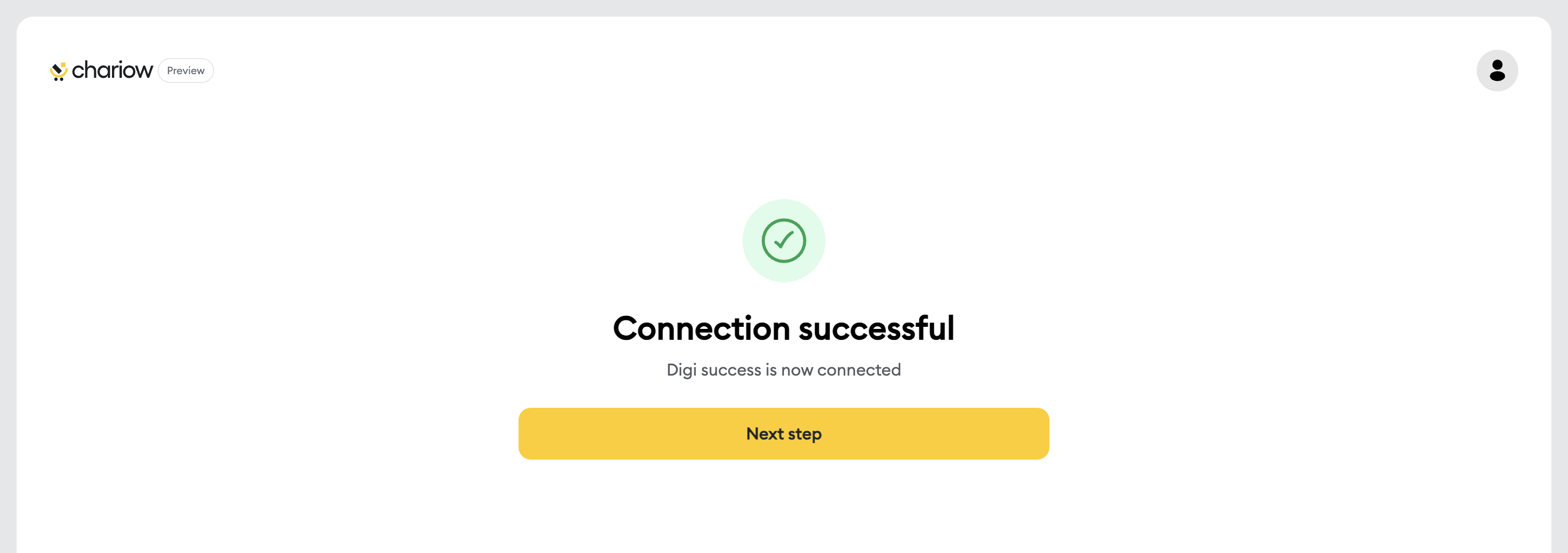
Click "Authorize access" then "Continue" once the connection is successful.
For a smooth experience, enable use without constant approval:
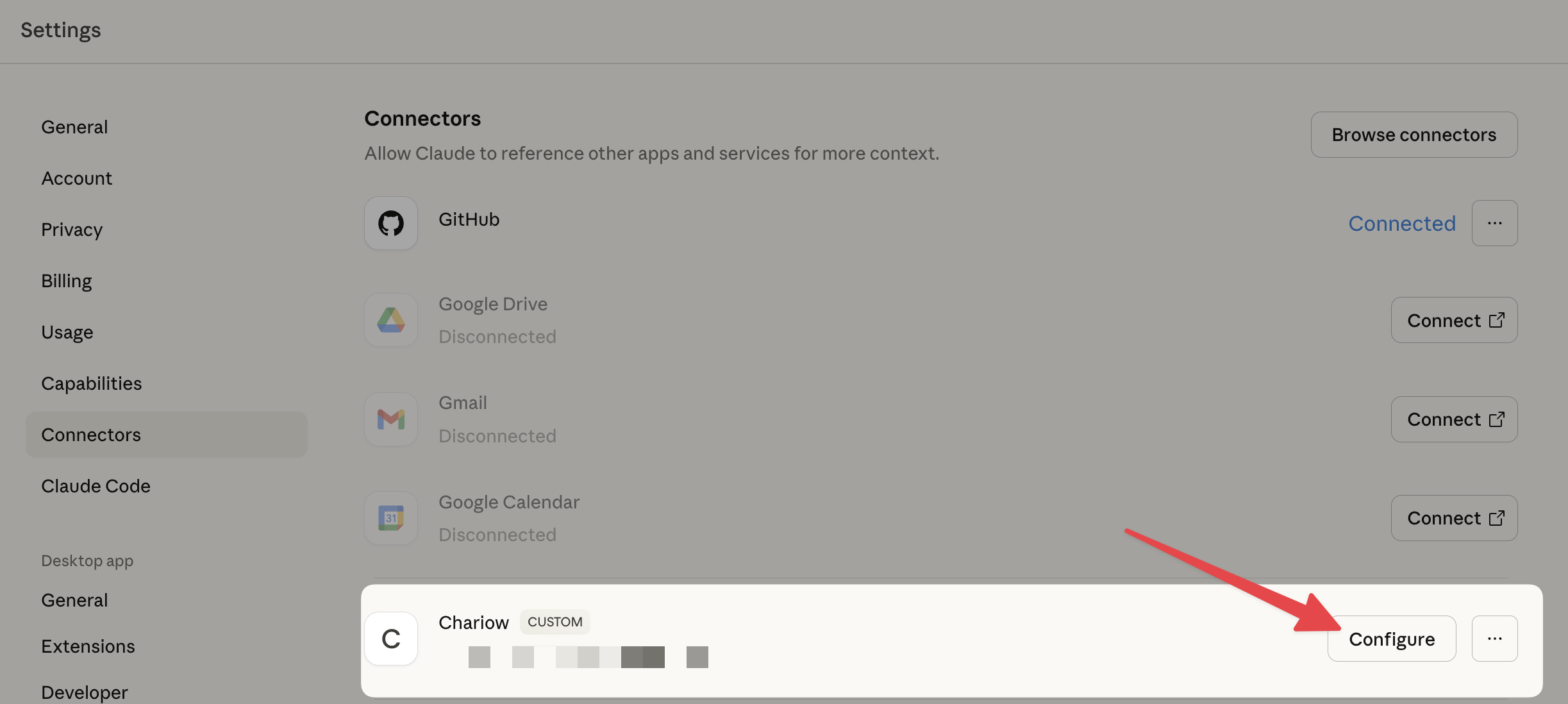
Go back to "Settings" > "Connectors" and click "Set up" next to Chariow.
Under "Tool permissions", open the dropdown for "Read-only tools".
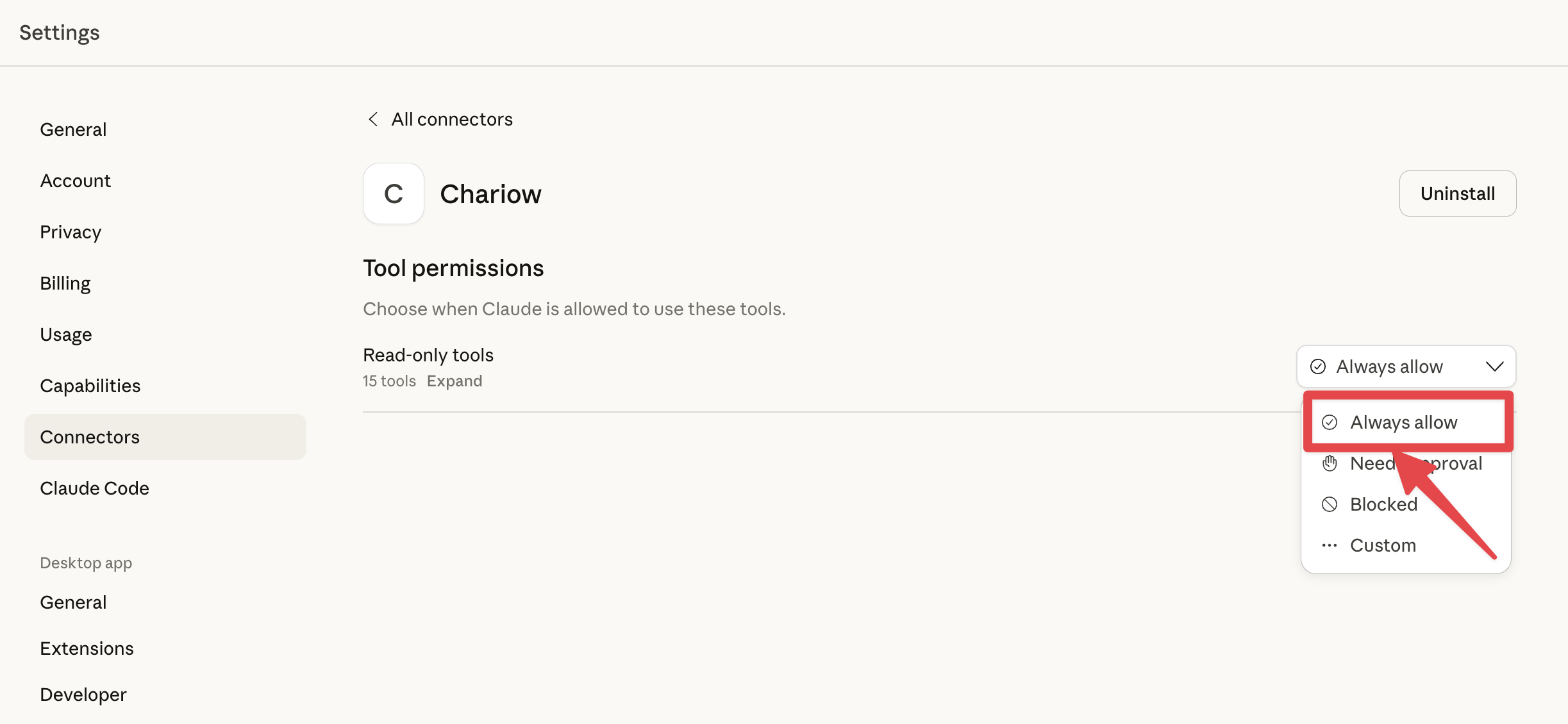
Select the "Always allow" option.
Once setup is finished, using it is super simple. You don't have to deal with complicated menus anymore.
Ask your question directly: Just type your query in the usual Claude chat bar.
Automatic detection: Claude will automatically understand that it needs to query your Chariow store to answer.
Examples of questions:
"Can you use Chariow to list my last 3 customers and the total amount of their orders?"
"Who are my most loyal customers this month on Chariow?"
Note: Although it's not required, the "Add from Chariow" menu (via the "+") button is still available if you want to force Claude to use a specific tool.
For direct query to work without interruption, make sure that:
The "Always allow" option is checked in the connector settings.
Access to your shop was correctly authorized during the initial phase.
Need help? Contact our support via chat or at [email protected]