All your "Makeup" pages, whether published or in draft, are managed from the "Marketing" area of your Chariow dashboard.
In the navigation menu on the left, click "Marketing".
Click the "Makeups" card to see the list of all your pages.
There are two main ways you can interact with your pages: using the context menu on the thumbnail, or with the action buttons on the details page.
On the page listing all your "Makeups", you can do several actions.
From the button "Create a makeup" start the process to create a new "Makeup" page.
Each 'Makeup' page is represented by a card that instantly shows its status :
Published: The page is online and accessible to the public.
Draft: The page is being created or disabled, and is not visible to your customers.
You can use the filters at the top of the page to show only pages with a specific status.
Each card offers quick tools to manage your pages. Note that clicking directly on the body or the title of the card will redirect you to detailed statistics and settings.
For specific actions, use the icons located at the bottom of each card:
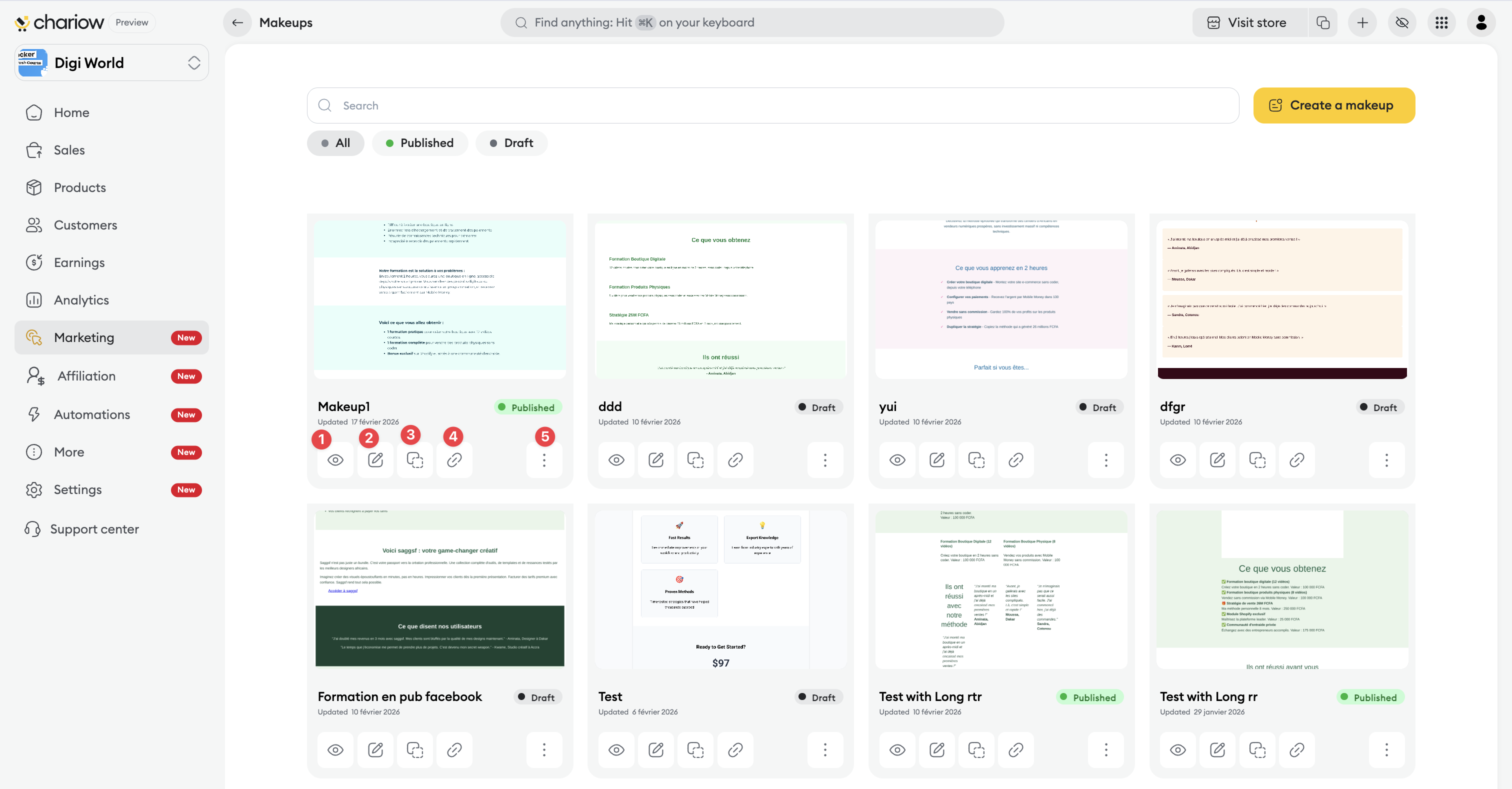
Preview (Eye Icon): Instantly view the final rendering of your Makeup as it appears to your customers.
Edit (Pen Icon): Opens the editor to customize your page's content, design, and elements.
Duplicate (Double Squares Icon): Creates an exact copy of your Makeup to quickly launch a new variant.
Direct Link (Link Icon): View the live page via its public URL and easily copy the link.
Action Menu (Three Vertical Dots Icon): Opens a context menu for additional options.
The actions available in this context menu are:
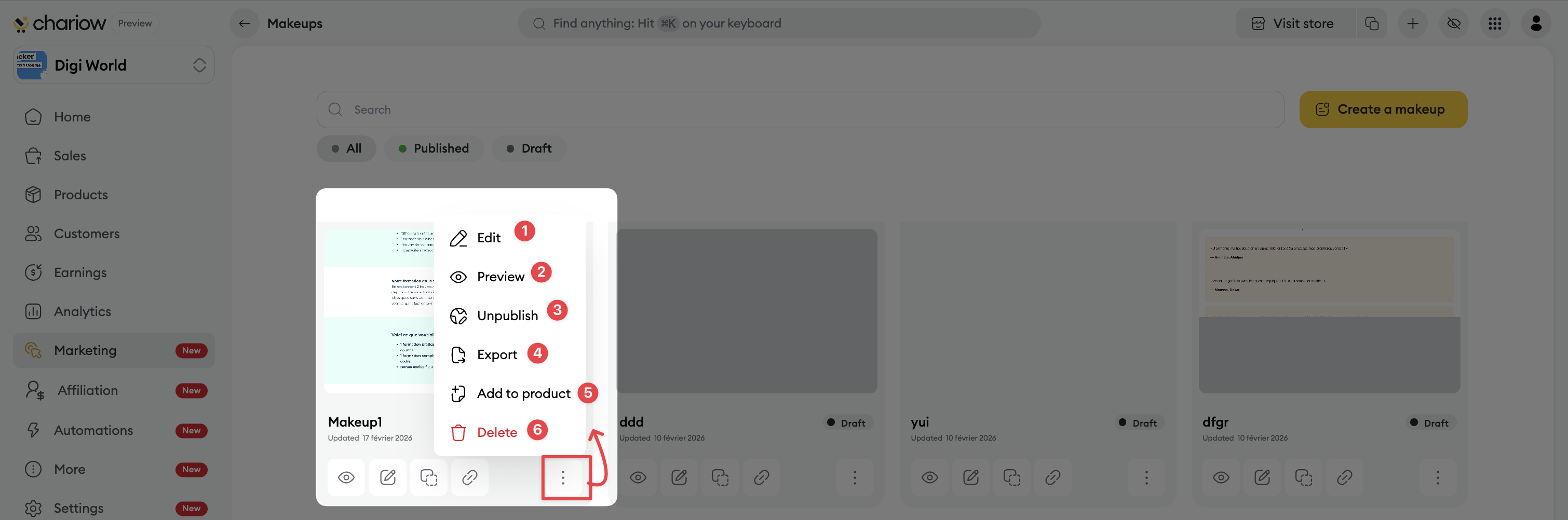
Edit: Opens the page editor to adjust visual content and design.
Preview: Opens a view of the page as it will appear to your visitors.
Publish/Unpublish: Makes the page publicly accessible or removes it from public view.
Export: Allows you to download a file of your template.
Add to Product: Allows you to link this Makeup to one of your existing products to use it as a sales page or content page.
Delete: Permanently removes the "Makeup" from your list.
When you go to the advanced management interface (the "Makeup-Details" page), you can check out its analytics or settings and take a few actions.
Main Action Buttons (Top right)
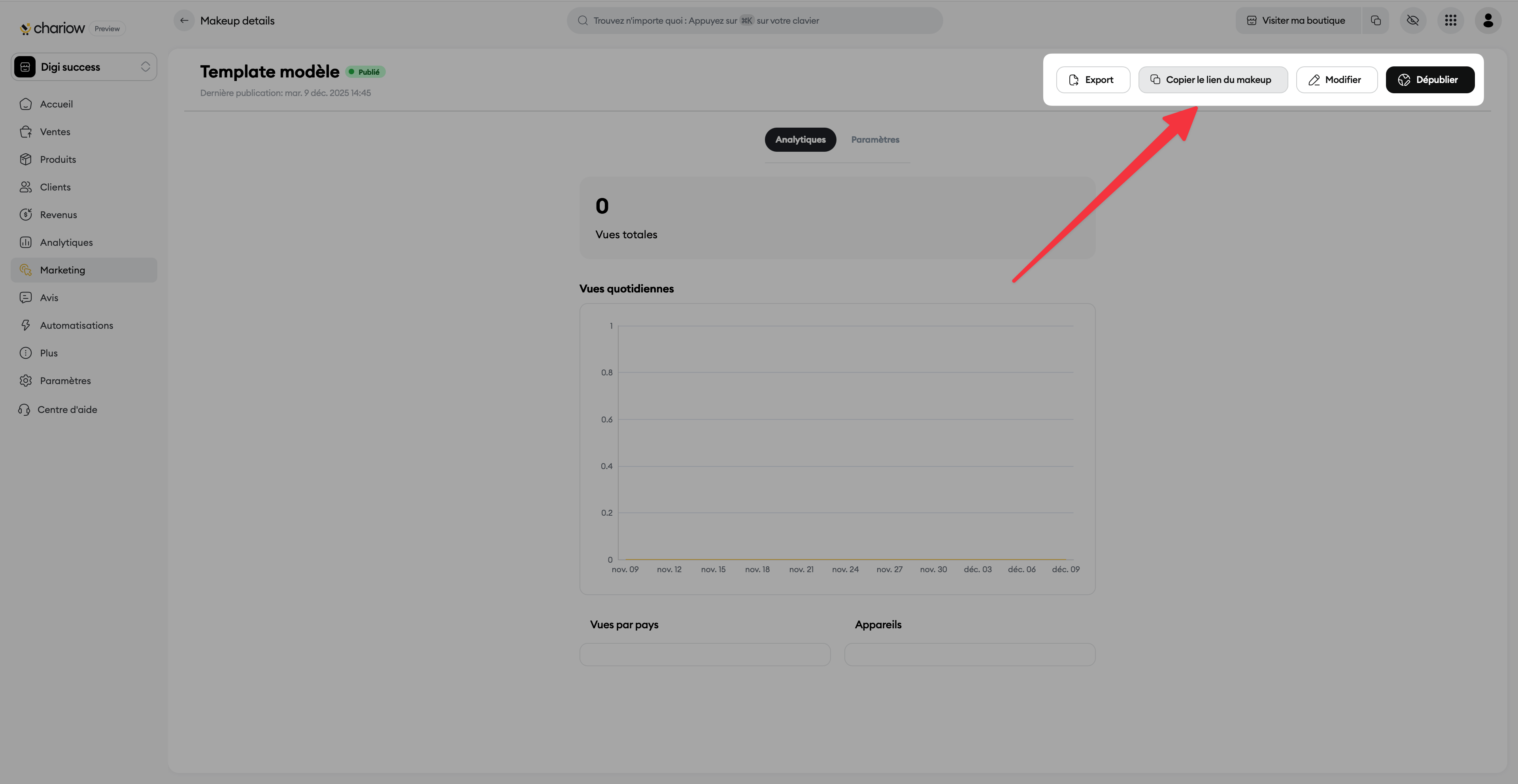
In the detailed view, the following actions are available in the top right:
Export: Downloads the "Makeup" template file.
Copy makeup link: Copies the public URL of the page to share it.
Edit: Opens the visual editor to customize the content.
Publish/Unpublish: Puts the page live or removes it from the public.
"Analytics" View
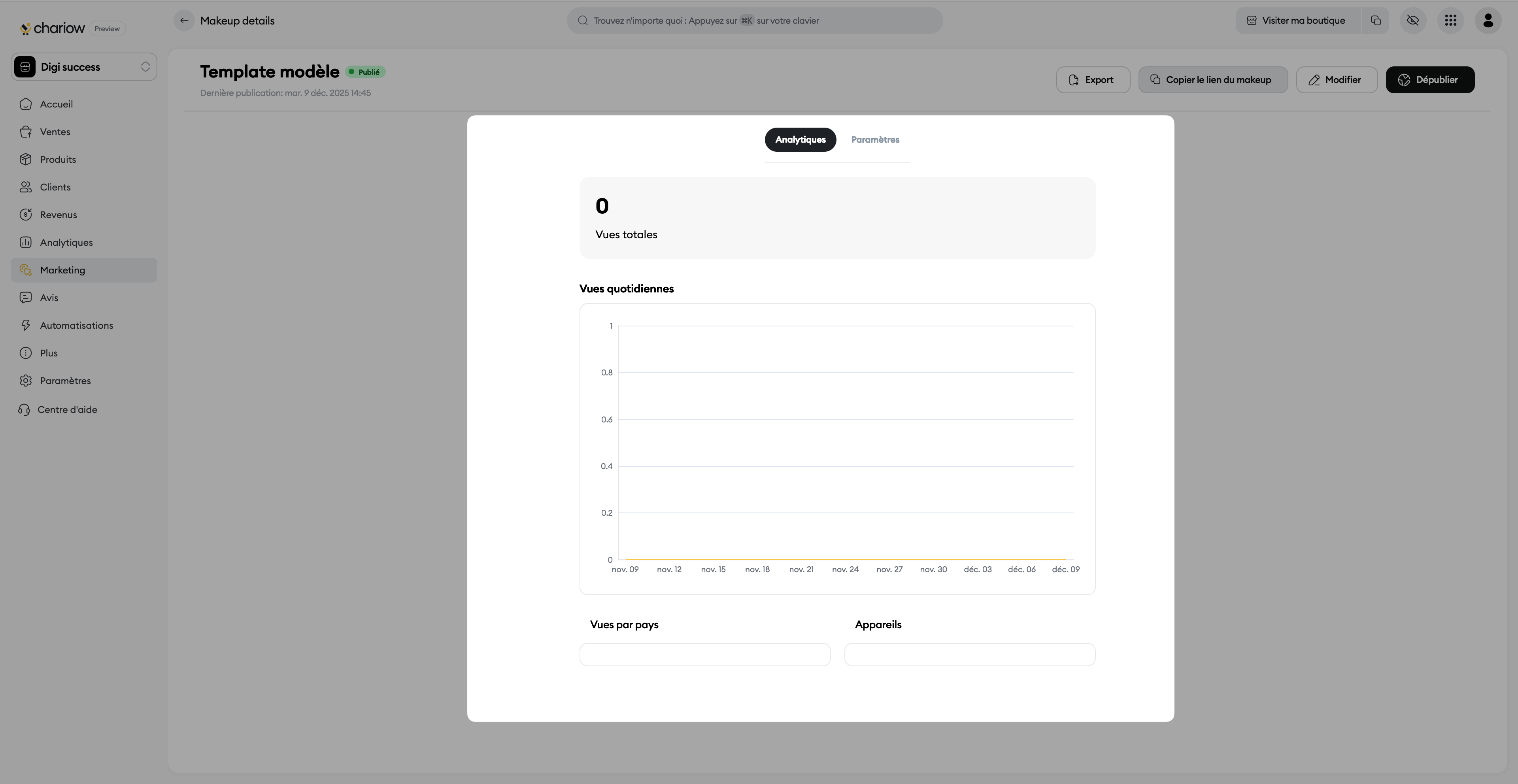
The "Analytics" tab is the first default view and gives you essential performance data:
Total views: Shows the total number of times the page has been viewed.
Daily views: Shows a graph of the views per day.
Views by country and Devices: Lets you see the visitors' geographic origin and the kind of device they're using.
"Settings" View
The "Settings" tab lets you configure internal settings, SEO, and the functionality of the related product. To learn more, check out the article: Article link
Check the status: Make sure your ads direct traffic to pages with the status 'Published'.
Clean regularly: Delete outdated drafts to keep a clear overview in the Makeups area.
Need help? Contact our support via chat or at [email protected].

