WordPress allows you to embed custom HTML codes via blocks or widget areas. For the 'Snap' widget to work, you need to paste the copied code into the right area of your page or post.
Requirements:
You must have generated and copied the HTML code of your 'Snap' widget (see the article: Snap: Embed a shopping widget directly on your site).
You must have editing rights on the target WordPress page or post.
The embedding method changes slightly depending on which WordPress editor you use.
Most page builders include a dedicated element for code or HTML.
Open your page in the builder (e.g. 'Edit with Elementor').
Look for an element like 'Code', 'HTML', or 'Embedded code'.
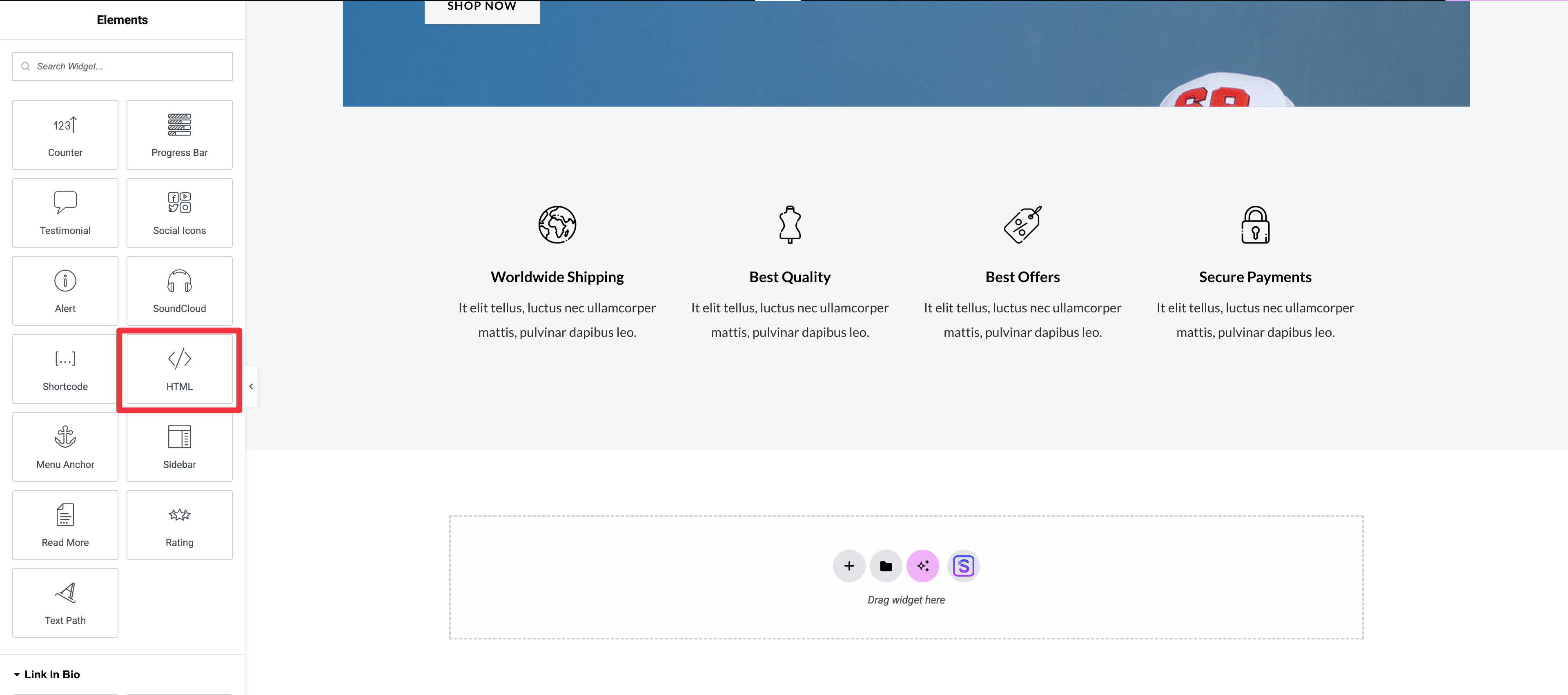
Drag and drop this element where you want it.
Paste the HTML code of your 'Snap' widget (the one that starts with <div id="chariow-widget" ...>) into the element's input field.
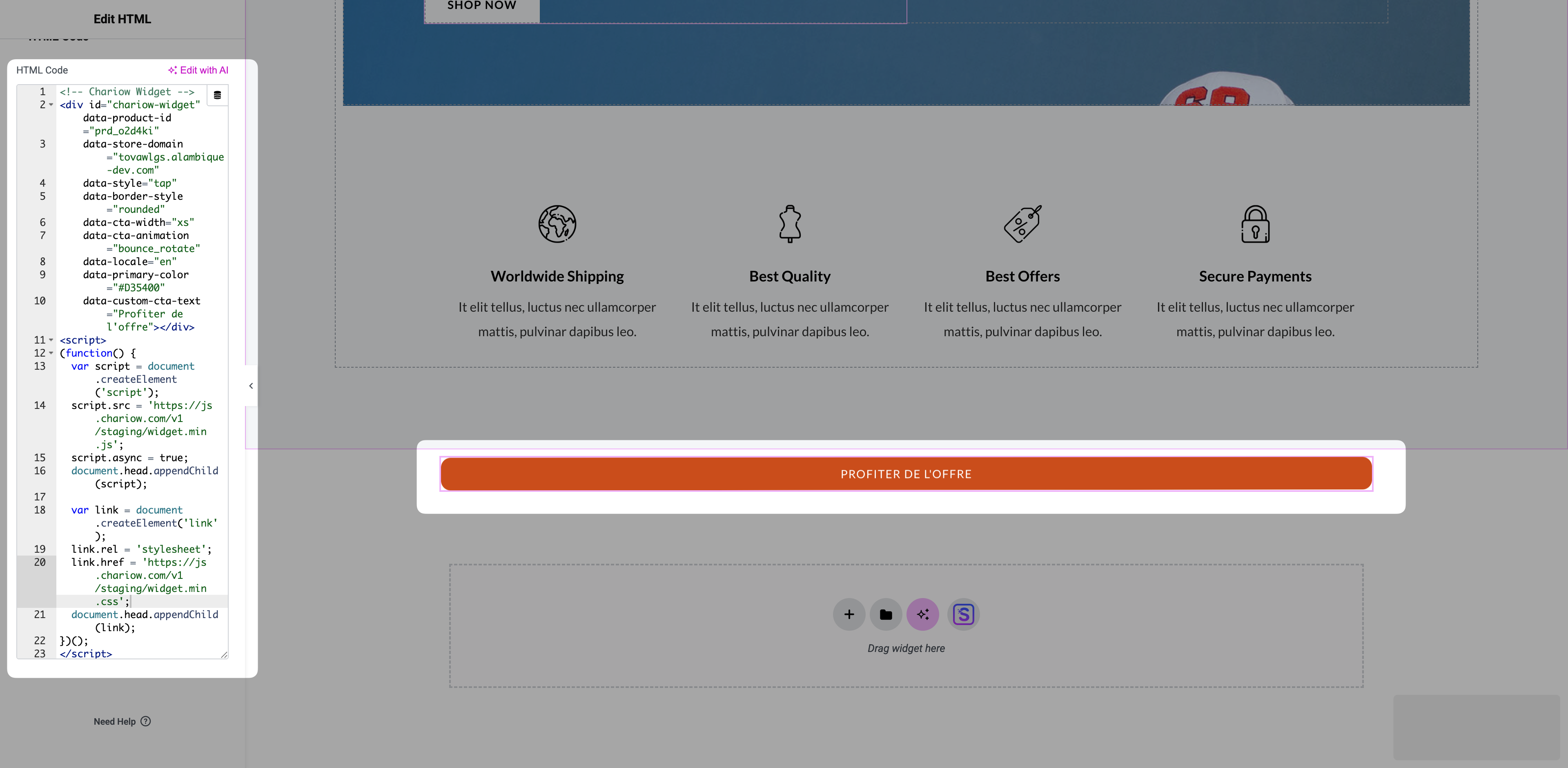
Save the changes in the builder and update the WordPress page.
In the WordPress admin, open the page or post where you want to embed the widget.
Click the '+' button to add a new block where you want it.
Search for and select the 'Custom HTML' block (often found in the 'Widgets' or 'Formatting' category).
Paste the 'Snap' code into the block's text area.
Click 'Update' or 'Publish' to save the changes.
If you're using the classic WordPress editor:
Open the target page or post.
In the editor window, switch from 'Visual' mode to 'Text' (or 'Code').
Paste Chariow's 'Snap' code exactly where in the text you want the button to appear.
Switch back to 'Visual' mode (the widget won't show, but you'll see the code) and click 'Update' to save.
After saving your changes, preview your page to confirm that:
The 'Snap' buy widget displays correctly.
The buy button works and starts the Chariow payment process without redirecting.
The widget doesn't appear: The code may have been pasted in 'Visual' mode in the Classic editor, which turned it into plain text. Fix: Always paste the HTML code into the 'Custom HTML' block (Gutenberg) or in 'Text' mode (Classic).
Formatting issues: Make sure the code is properly isolated in a dedicated HTML block.
Need help? Contact our support via chat or at [email protected].

