Snap is a powerful feature designed to maximize your conversions by removing the friction caused by external redirects. By integrating a simple piece of code on your site (or a third-party platform), you display a purchase button directly linked to a Chariow product.
This widget lets your visitors add the product to their cart and complete the transaction without ever leaving the page they're on, whether it's a blog post, a landing page, or any other section of your site.
To access it in your Chariow interface, head to the side menu and click on Marketing, then select Snap.
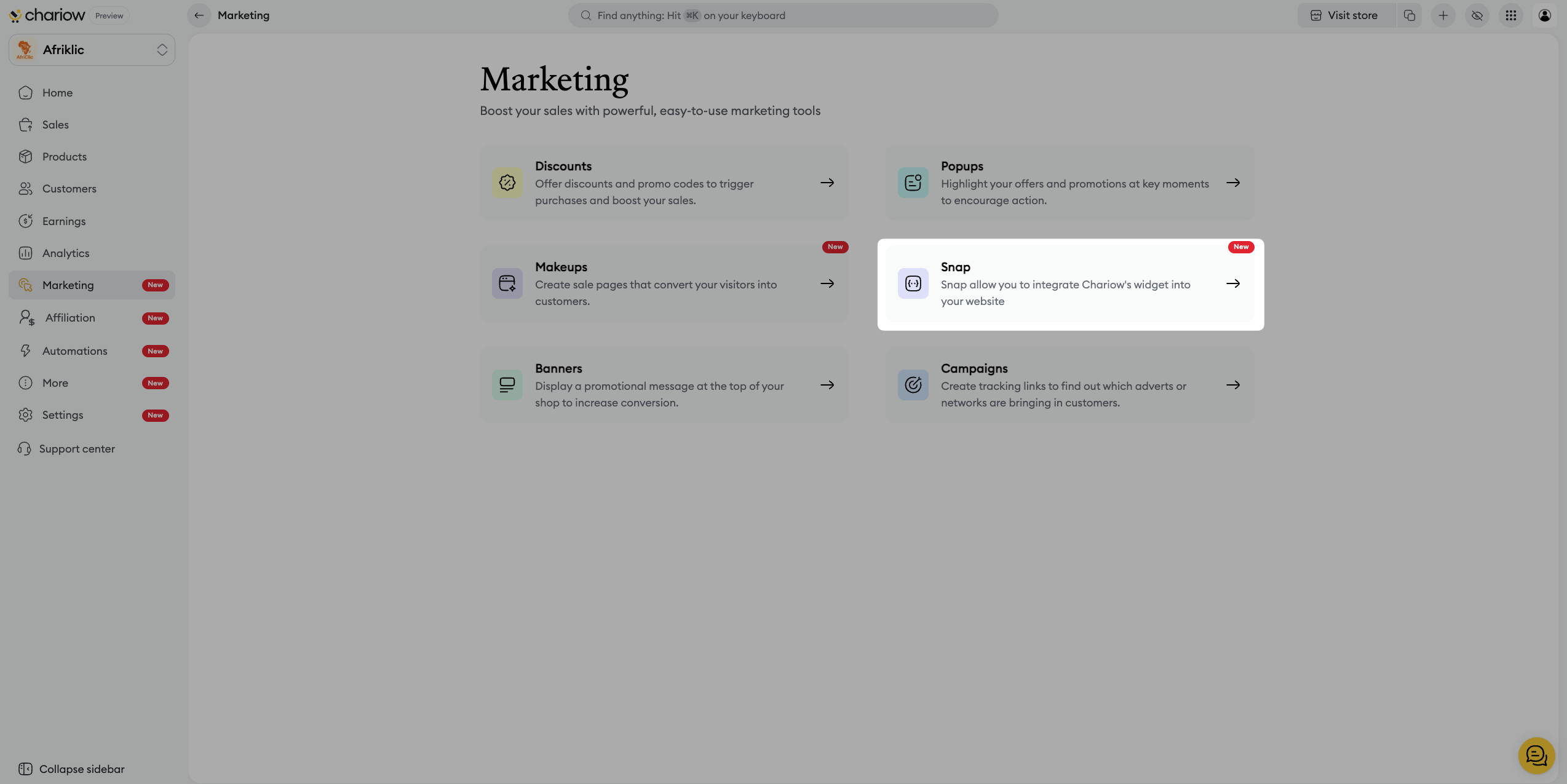
Creating a Snap widget just takes a few simple steps in your Chariow dashboard:
In the Marketing menu > Snap, click the Generate my snap button.
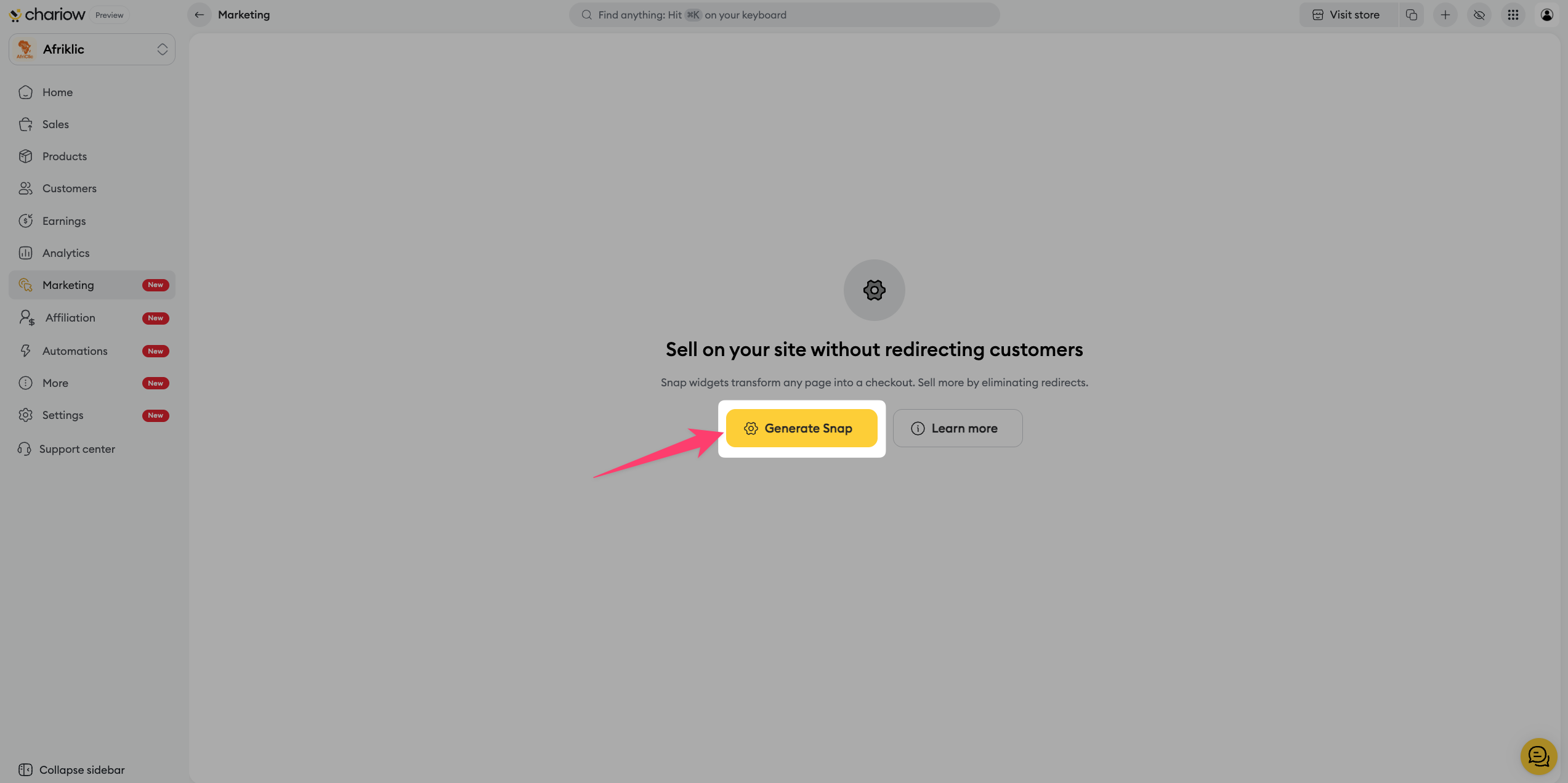
The customization page opens, letting you set up your widget's look and content.
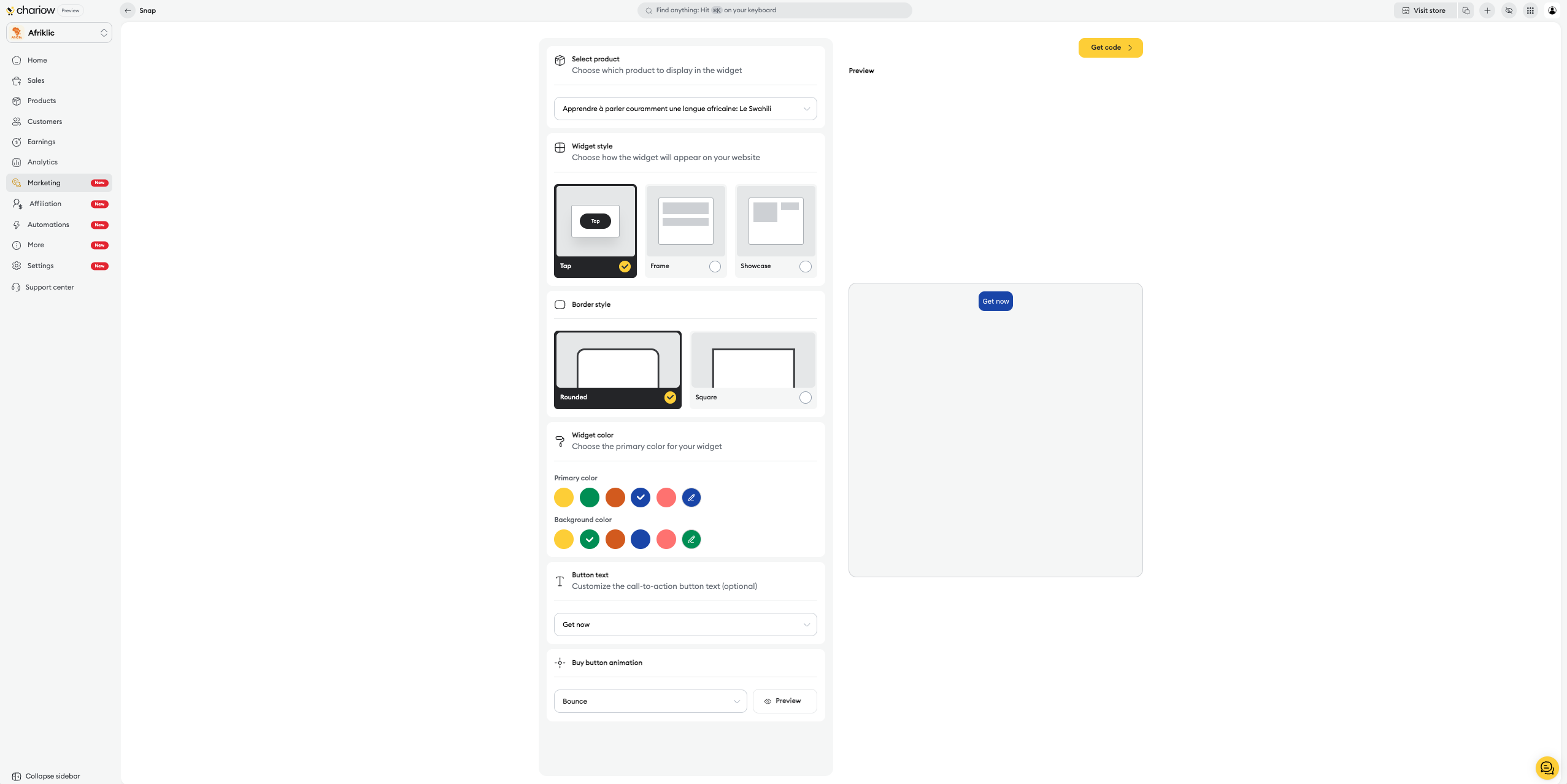
You have several options to define your widget's look and behavior:
Select a product: Choose the product from your Chariow catalog that you want to link with this widget. This is the most important step, as it ties the button to the right inventory and price.
Widget style: Set how the widget displays on your page. The usual options include:
Tap: A simple buy button.
Frame: A more visible block that includes the product name.
Showcase: A floating or pop-up widget.
Border style: Choose between 'Rounded' for softer corners or 'Square' for sharp angles.
Widget color: Set the main color of the button to match your website’s branding.
Button text: Customize the text shown on the action button (e.g.: "Buy now", "Download", "Add to cart"). This field is optional.
Buy button animation: Add a subtle animation to draw the user's attention to the button.
Once you're happy with the widget preview, do the following:
Click the “Get code” button to finish customizing and access the 'Widget code' page.
Click 'Copy code'.
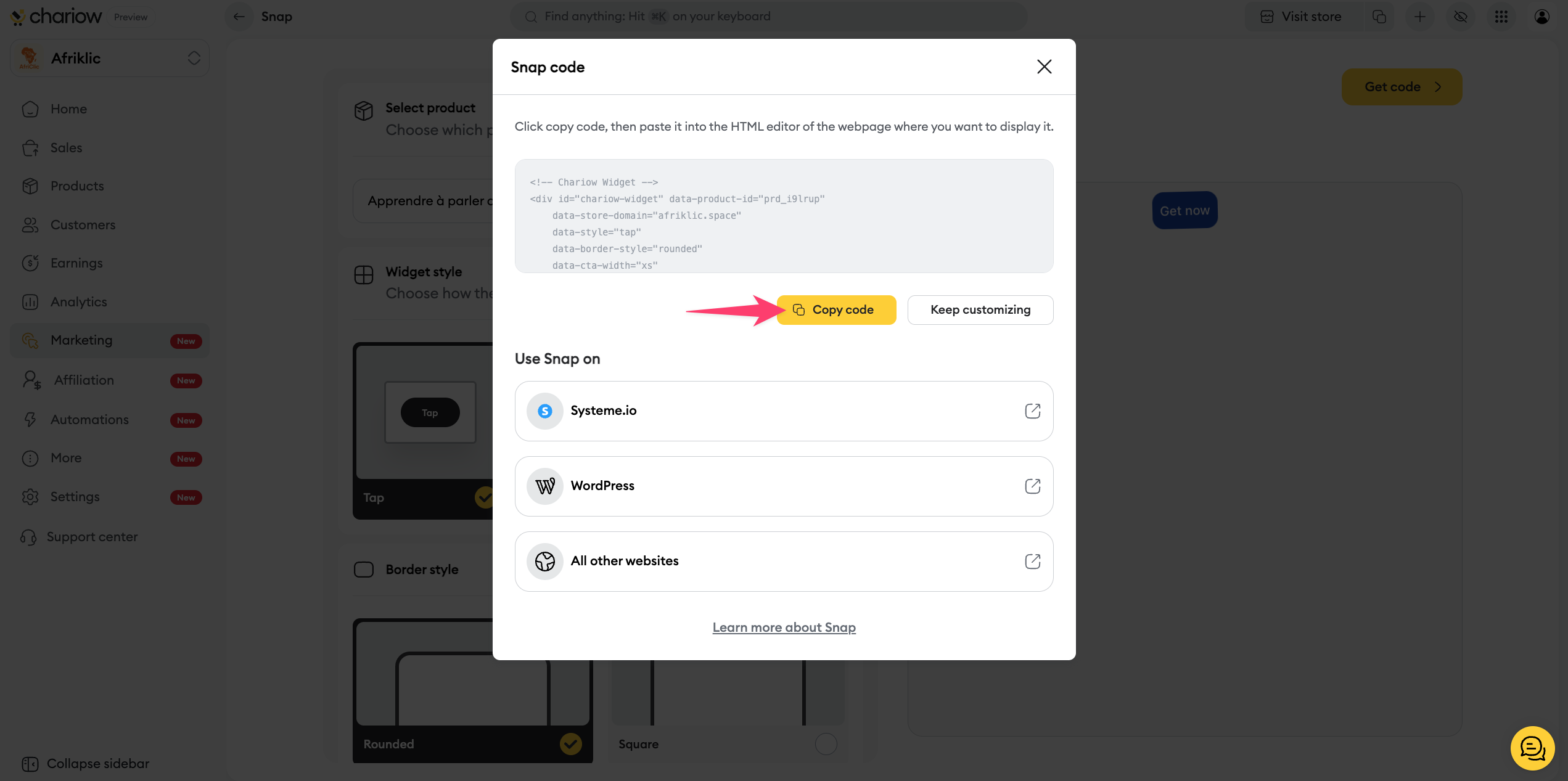
The full HTML code for your widget is now copied to your clipboard. It appears as a code block like <div id="chariow-widget" ...>.
The widget code needs to be inserted into the HTML editor of the webpage where you want it to appear.
Embed rule: Paste the copied code in the exact place inside the body (<body>) of your web page where you want the buy button to show up.
For detailed, platform-specific instructions, please check the following articles:
Button clarity: Make sure the 'Button name' is clear and prompts action. Use an action verb to maximize effectiveness.
Strategic placement: Place the widget where your visitor is most likely to make a purchase decision (for example, after a detailed product description or a testimonial).
Visual consistency: Use the 'Widget color' so it stands out, but keep it harmonious with your site's color palette.
Need help? Contact our support via chat or at [email protected]

