

Exporting your customer database lets you get a copy of your data for analysis, email marketing, or keeping records. On Chariow, you can easily export this info in the format you want in just a few steps.
Steps to export your customer database
Go to the Exports section: In the side menu, click More, then click Exports.
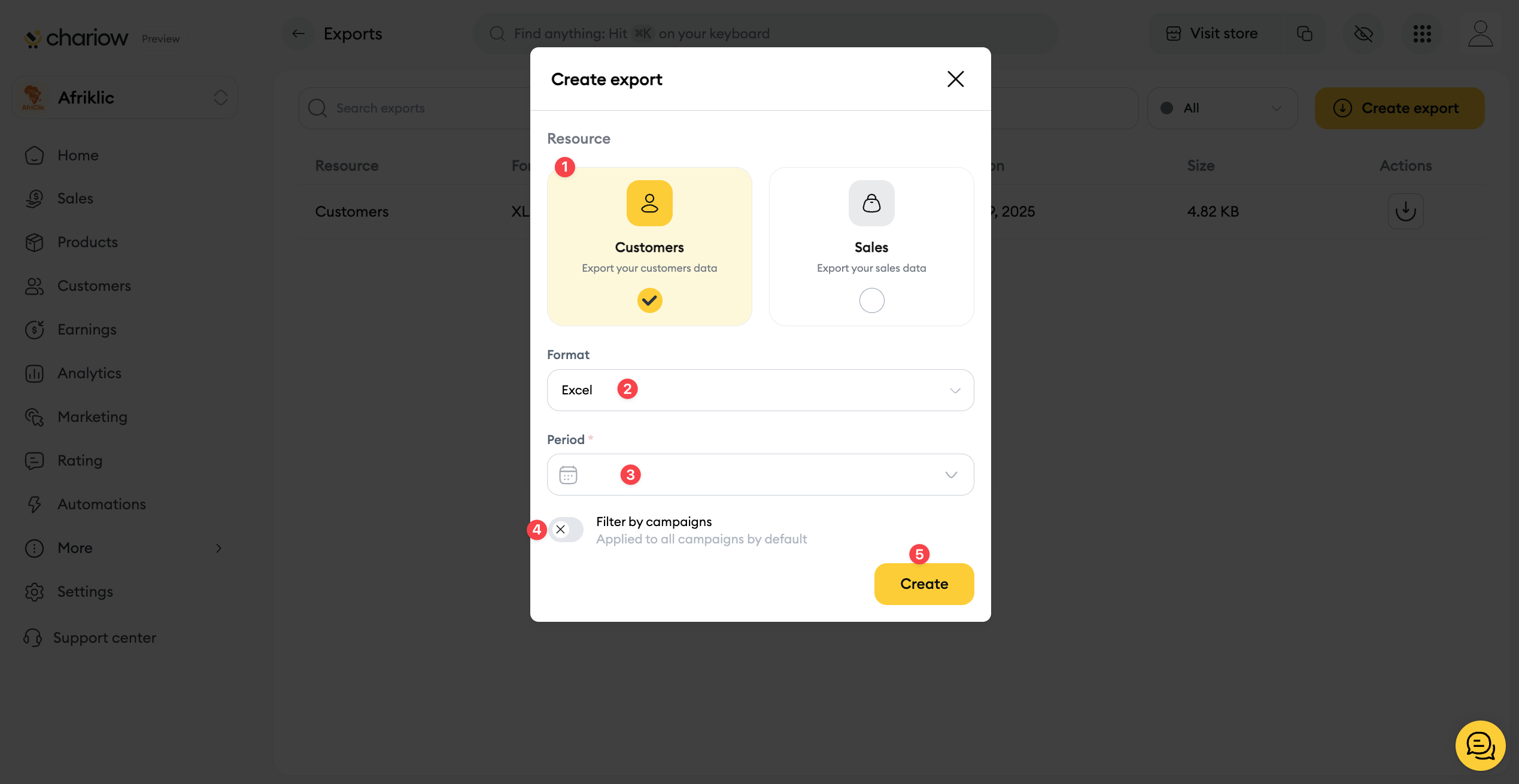
Create a new export: Click the Create export button. A pop-up window will open.
Set up your export:
Resource (1): Select the Clients option.
Format (2): Choose your file format. You can pick between Excel and CSV.
Period (3): Pick the period for which you want to export data. You can choose a custom range.
Filter by campaigns (4): Tick this option if you only want to export clients from certain campaigns.
Start the export (5): When you're done setting everything up, click the Create button.
Manage and download your exports
Once you've started the export, it will show up in a list on the Exports page.
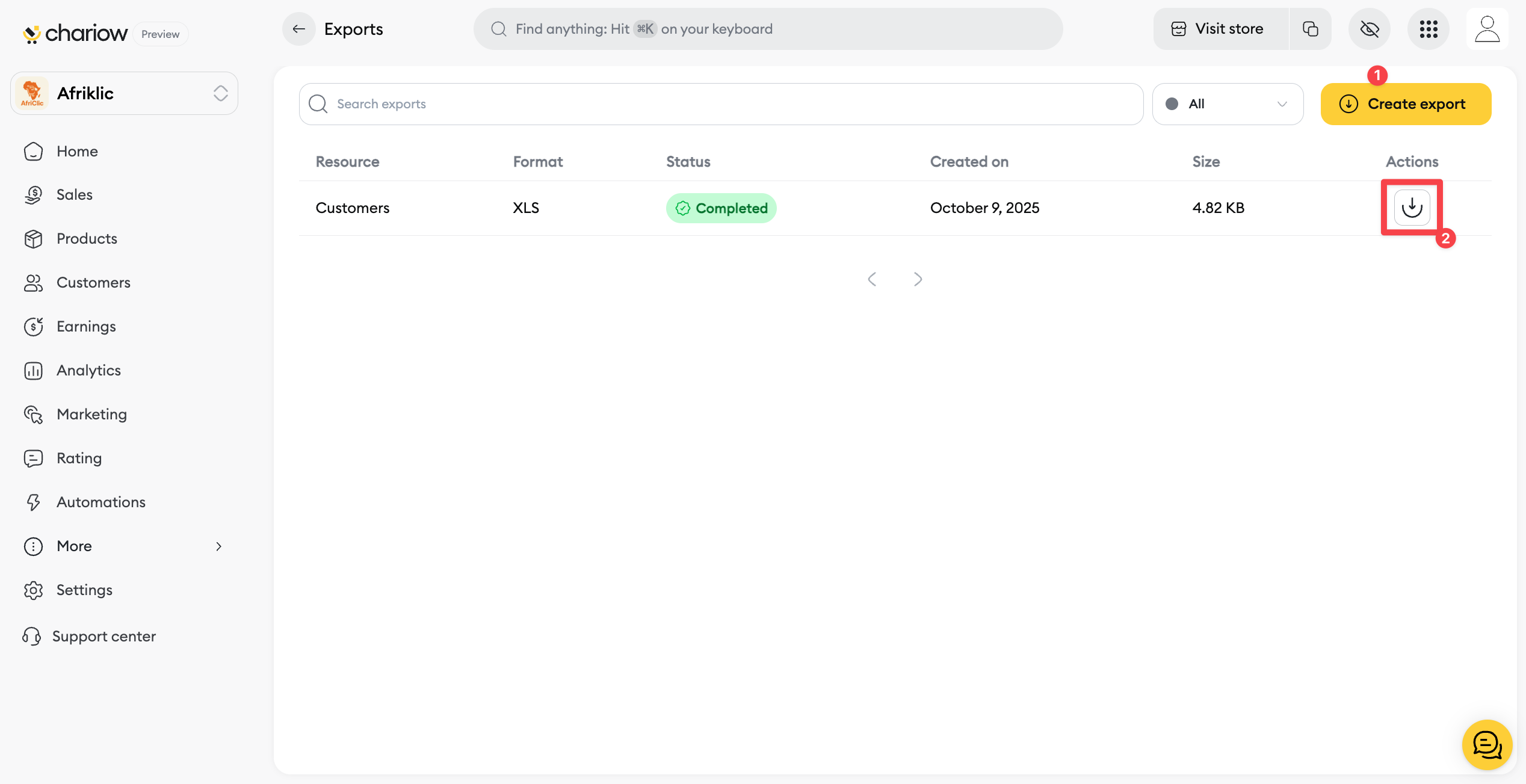
Status: The Status column tells you if your file is ready (Done) or if it's Pending processing.
Actions: Once the status switches to "Done", a download icon will appear.
Download your file (2): Click the download icon in the Actions column to get your file.
Need help? Contact our support via the chat or at [email protected]