The Media section of your Chariow dashboard is your image library. You can add all your brand images there so you can easily find and use them when you create your products, popups, and other marketing content.
In the side menu, click on the More tab.
Select the Assets option.
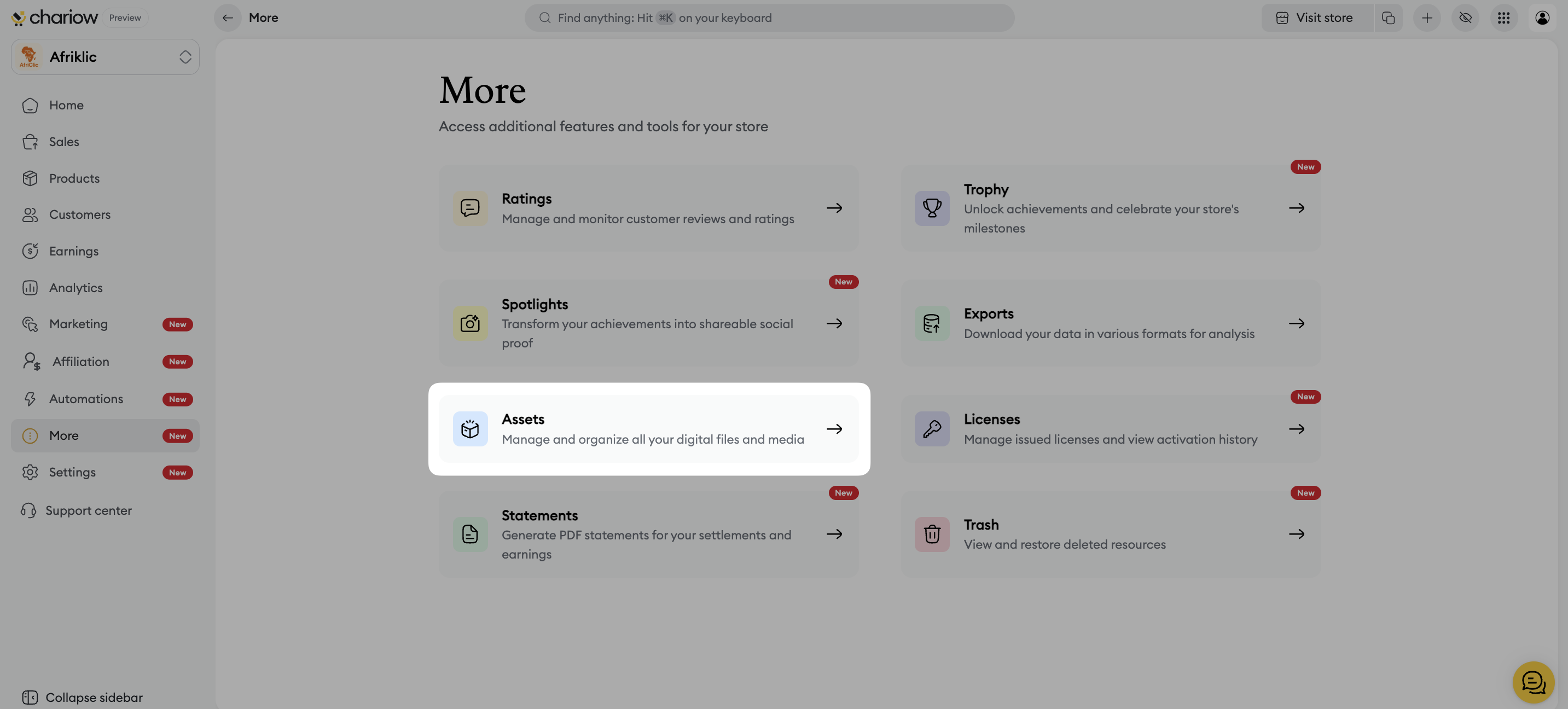
You arrive in your manager where all your imported files are centralized.
To grow your library, Chariow offers you several import sources:
Click on the Add an image button at the top right.
In the Media gallery window, choose your source from the menu on the left:
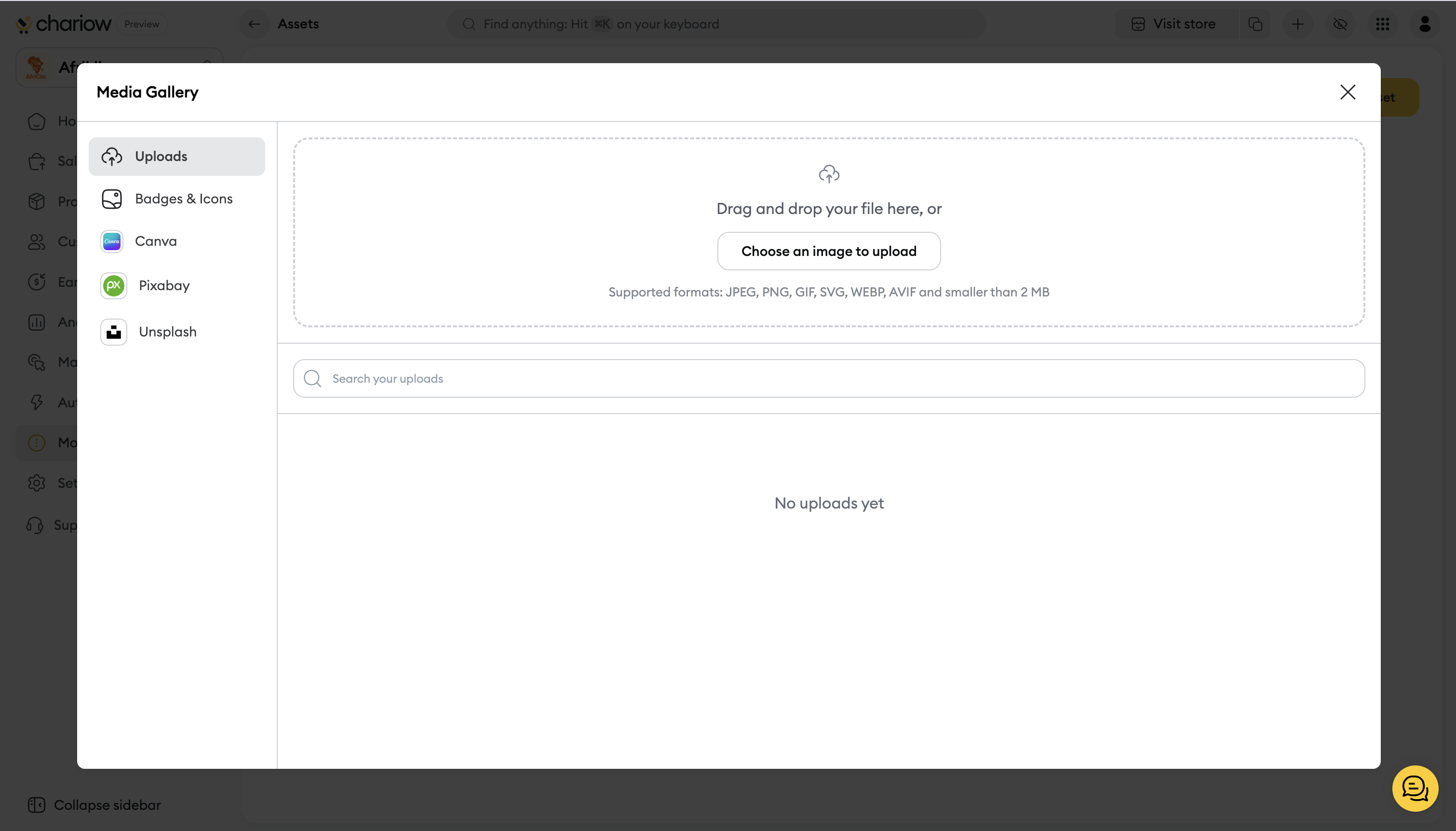
Uploads: Import a file directly from your computer (Formats: JPEG, PNG, GIF, WEBP, AVIF | Max 2 MB).
Badges & Icons: Access a library of ready-to-use graphic elements.
Canva: Connect your Canva account to import your designs directly.
Pixabay & Unsplash: Search and use millions of royalty-free images without leaving Chariow.
Once your library is filled up, use the management tools to save time:
Search bar : Type the name of your file to find it instantly.
Date filter : Use the calendar icon to display media added during a specific period.
If you want to tidy up your library:
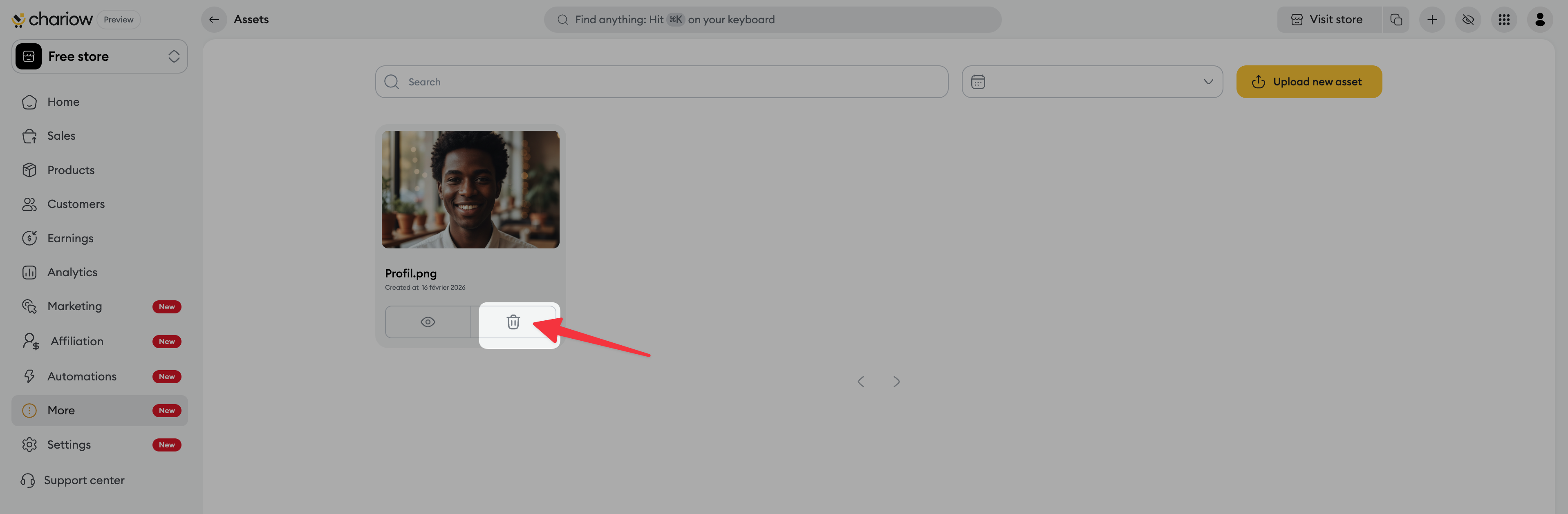
Hover your mouse over the image you want to remove.
Click on the trash icon that appears on the visual.
Confirm the action to permanently delete the image.
Need help? Contact our support via chat or at [email protected]

