Mailchimp is an email marketing platform that helps you create, send, and track email campaigns. It allows you to communicate with your customers, automate messages, and grow your audience.
Integrating Mailchimp with your Chariow store brings many benefits for managing your email marketing:
Automatic contact sync: Automatically add Chariow customers and newsletter subscribers to your Mailchimp lists.
Simplified audience management: Centralize all your customer and lead info in Mailchimp for a better overview.
Targeted email campaigns: Use data from Chariow to segment your audience in Mailchimp and send super-personalized communications (offers, new arrivals, reminders).
Powerful marketing automation: Set up automated workflows (welcome sequences, abandoned carts, customer birthdays) that are triggered by your customers’ actions on Chariow.
To connect your Chariow store to your Mailchimp account, you’ll need to get your Mailchimp API key and enter it in the Chariow integration interface.
Log in to your Mailchimp account:
Go to the Mailchimp website and log in with your credentials.
Go to your profile:
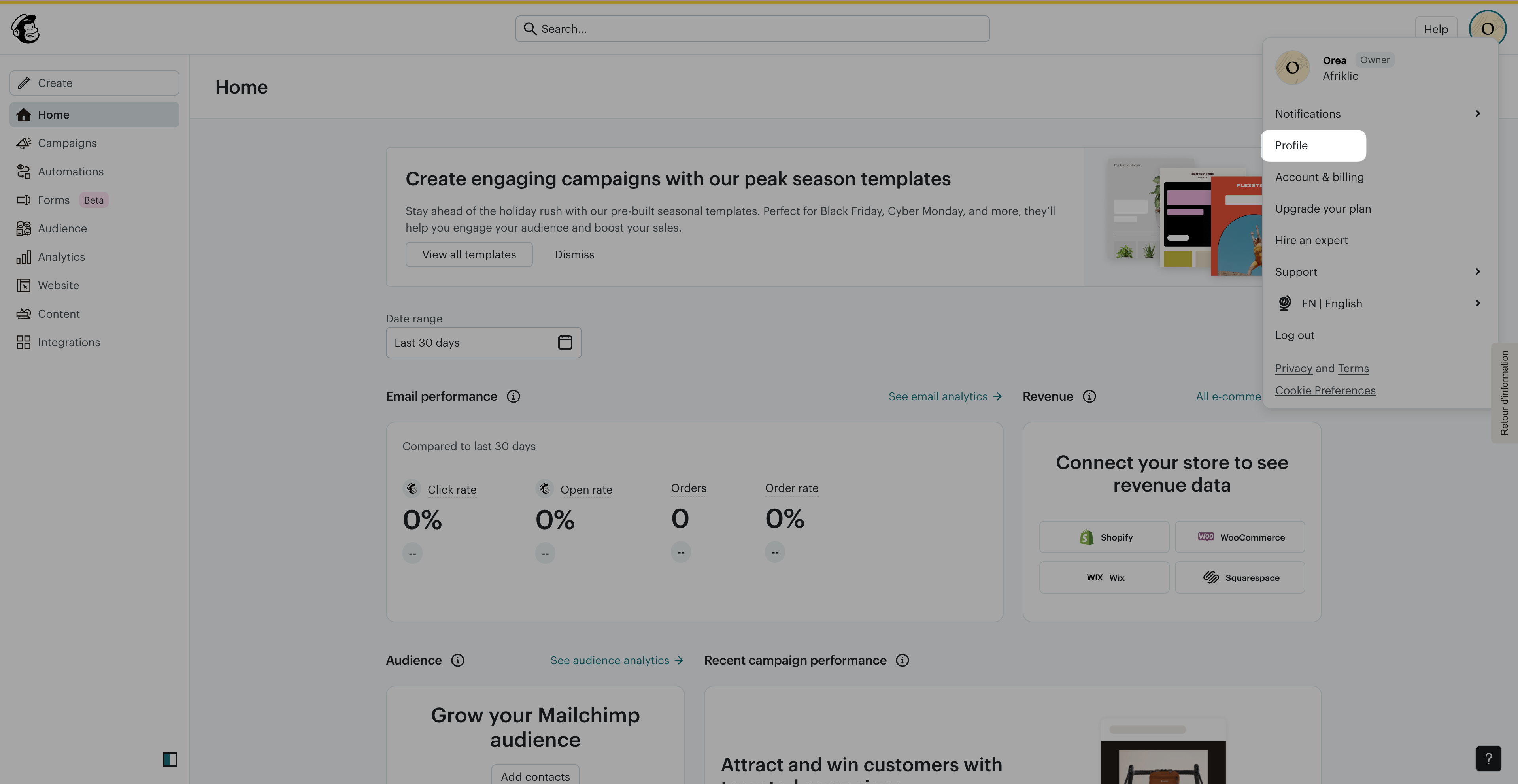
Once you're logged in, click your profile (often your account icon in the top right).
In the dropdown menu, select "Profile".
Go to your API keys:
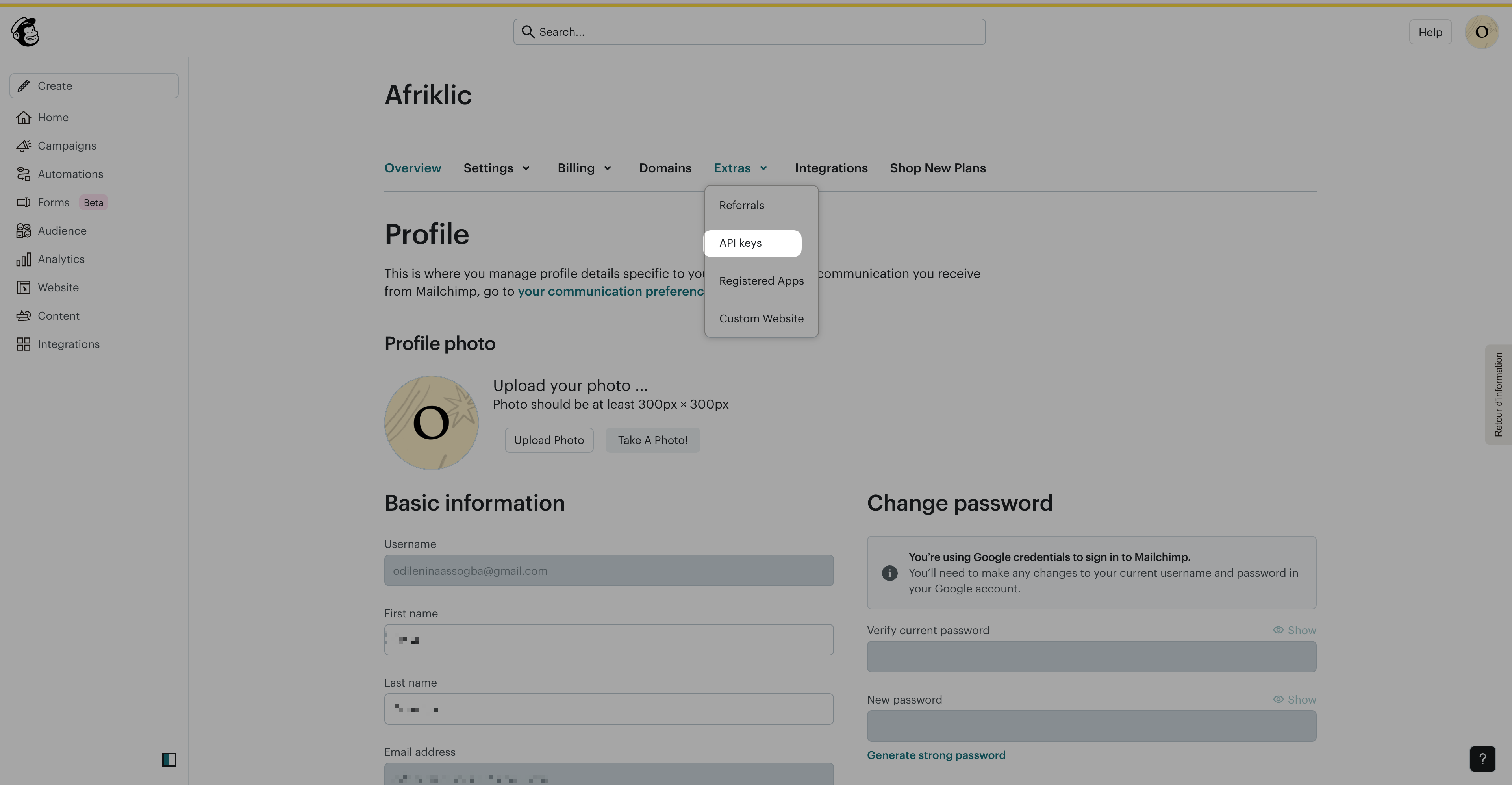
In your profile options, click the "Extras" menu, then choose "API Keys".
Create or copy your API key:
If you don't have an existing API key, scroll down to the "Your API keys" section and click the button "Create A Key".
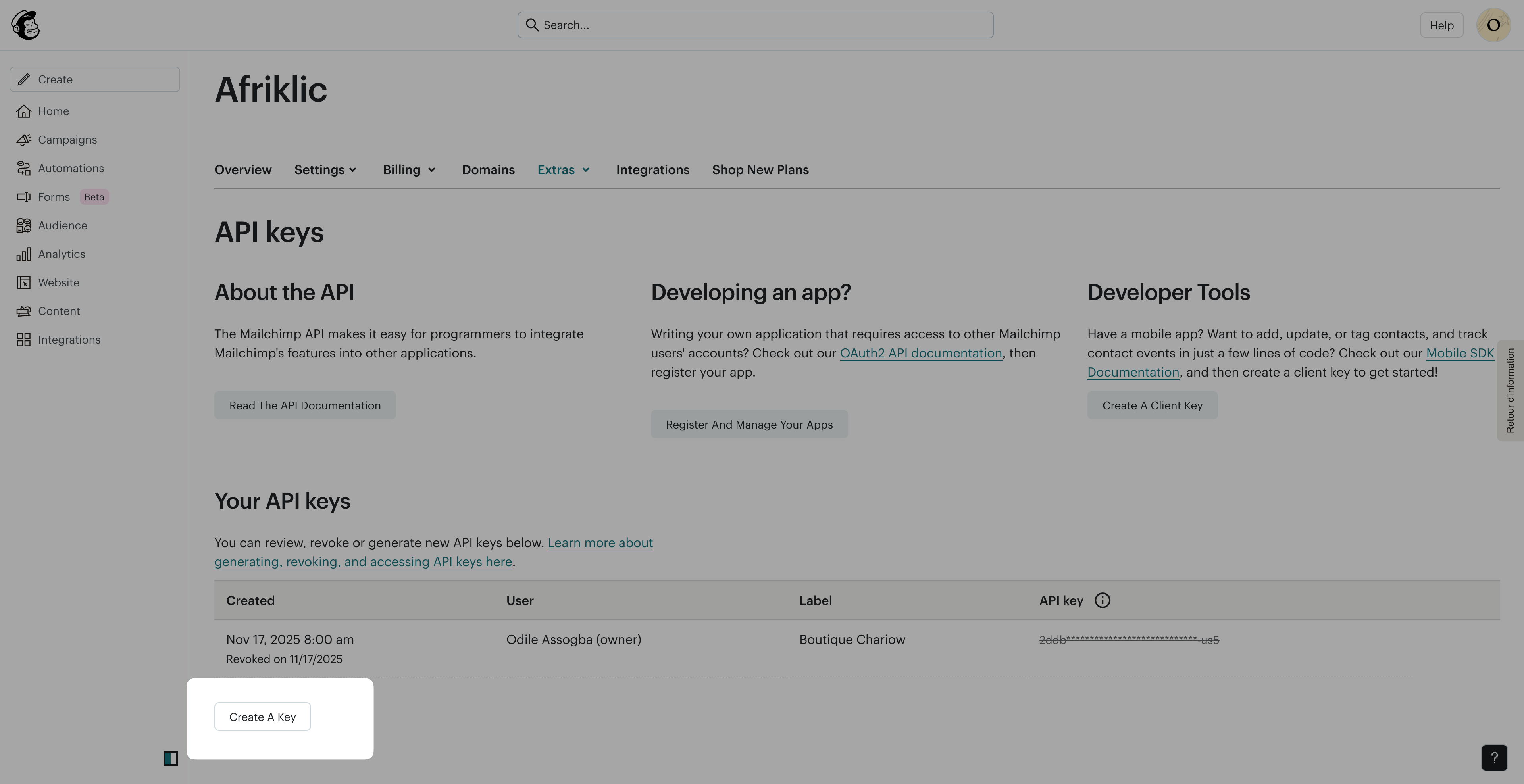
Once the key is generated, copy it completely. This string of characters is essential for integration. Keep it safe and don't share it publicly.

Log in to your Chariow dashboard:
Open a new window or tab and log in to your Chariow store admin panel.
Go to integrations:
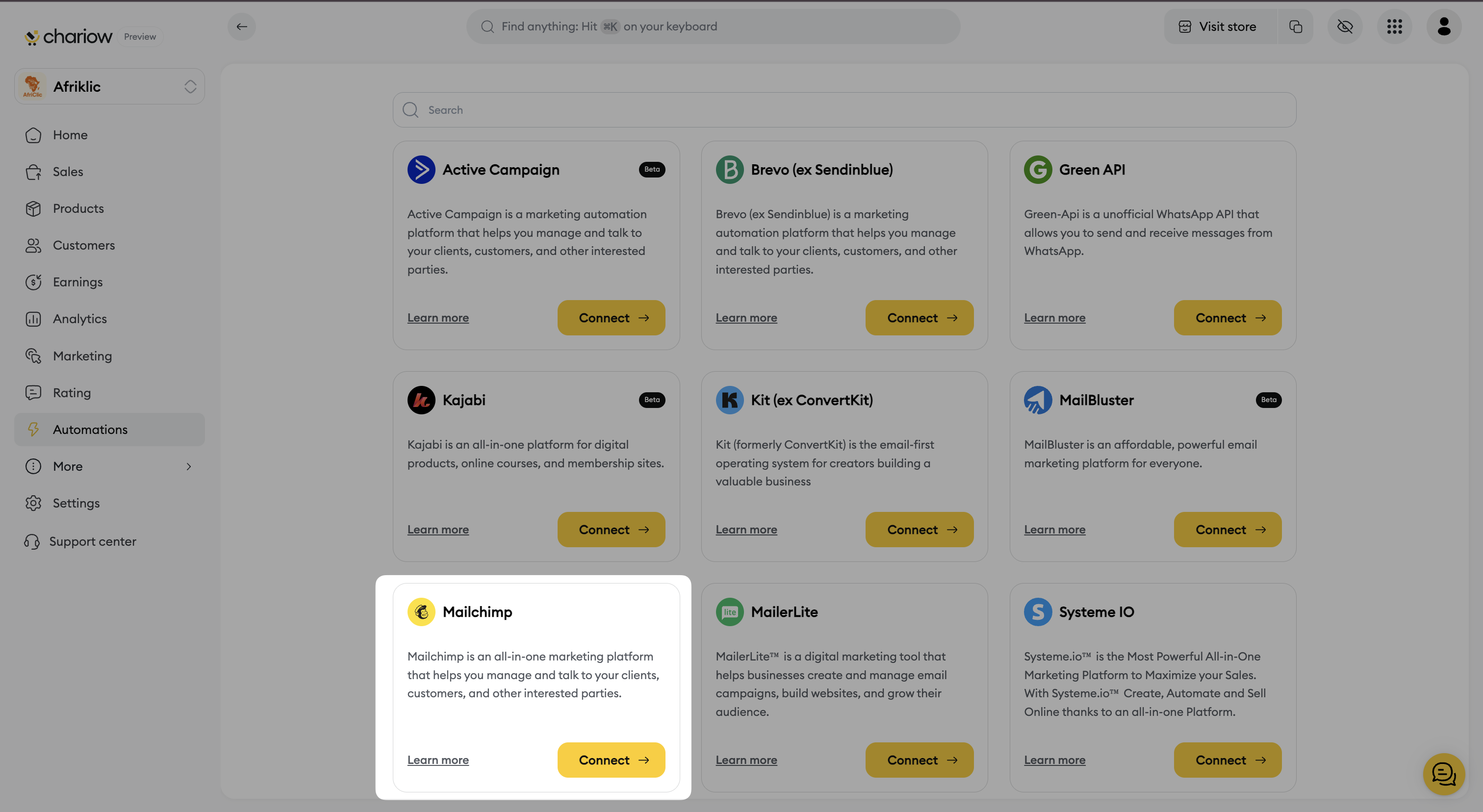
On your Chariow dashboard, head to the "Automations" section.
Click on "Integrations".
Select Mailchimp:
Find "Mailchimp" in the list of available tools (scroll if needed) and click the "Connect" button.
Enter the login information:
A login page will open, asking you to fill in the following info:
Name your integration: Give this connection a recognizable name (e.g. "Mailchimp Newsletter").
Paste your "API Key": Paste the Mailchimp API key you copied in the previous step into the "API Key" field in Chariow.

Save and activate the integration:
Click the "Connect" button to finish connecting.
To make sure everything's working right:
Set up a workflow to add your customers to a list:
When setting up your workflow in Chariow, you'll need to pick the specific Mailchimp list you want to add your customers to.
Do a test:
If your store is live, place a test order or sign up to your newsletter through a Chariow form.
Check in Mailchimp:
Head back to your Mailchimp account and make sure the test contact was added to the selected audience.
You can follow the video tutorial below for a hands-on guide:
Need help? Contact our support via chat or at [email protected]

